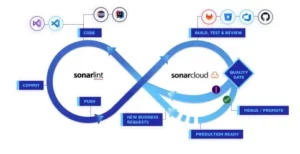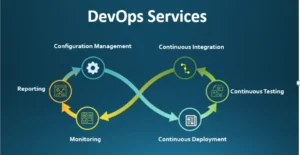


- 1 Applying SonarCloud into your CI/CD system raises the code standard for various industries, particularly in finance and healthcare services, due to the identification of bugs, weak points, and code smells.
- 2 SonarCloud works as a very strict supervisor which checks all code lines, shares essential information through reports, and helps to enhance the quality of applications, especially for applications built from scratch and cross-platform mobile applications.
- 3 To utilise SonarCloud, one needs to acquire an account, generate the access token and proceed to scan projects with SonarScanner that augments the CI/CD processes through integration of code intelligence and conformity to the highest standards in developmental fields of software engineering.
SonarCloud is a hosted code quality and security analysis tool. Plugged into your CI/CD pipeline, it automatically scans your code for bugs, vulnerabilities, and maintainability issues every time you push a change — before that code ever reaches production.Why Add SonarCloud to Your Pipeline
Manually reviewing every line of code for bugs and security issues doesn’t scale. SonarCloud automates that check, so problems get caught early — before a bug or vulnerability ever reaches a live application.
This matters most for:
- Any codebase meant to last, where small quality issues compound over time into real maintenance cost
- Regulated industries like finance and healthcare, where a missed vulnerability has real consequences
- Teams shipping frequently, where manual review can’t keep pace with how often code changes
In addition to saving time, incorporating automated code analysis builds a stronger security posture. Modern financial software development, for example, demands rigorous static application security testing (SAST) to comply with strict industry regulations like PCI-DSS. SonarCloud acts as an always-on security guard, instantly flagging hardcoded credentials, vulnerable dependency patterns, and improper data handling techniques before they ever reach a staging environment. This proactive approach drastically reduces the risk of expensive data breaches in production.
Setting Up Your SonarCloud Account
1. Create a SonarCloud Account
The foundation of integrating SonarCloud into your CI/CD pipeline lies in creating a SonarCloud account. This process is designed to be user-friendly, ensuring a seamless onboarding experience for developers and organizations alike.
Step-by-Step Guide:
- Navigate to the SonarCloud Website:
- Open your preferred web browser and go to the SonarCloud website.
- Sign Up for an Account:
- Locate the “Sign Up” or “Create an Account” button on the homepage.
- Click on the button to initiate the account creation process.
- Provide Basic Information:
- Fill in the required fields, which typically include your name, email address, and a password.
- Optionally, you may need to provide information about your organization, depending on your account type.
- Agree to Terms and Conditions:
- Review the terms of service and privacy policy.
- If you agree, check the relevant boxes and proceed.
- Verify Your Email:
- After completing the registration form, check your email for a verification message.
- Click on the verification link provided in the email to confirm your SonarCloud account.
- Complete the Registration:
- Return to the SonarCloud website and log in with your newly created credentials.
- Complete any additional steps, if required, to finalize the registration process.
Note: Keep your SonarCloud credentials secure, as they will be essential for future interactions with the SonarCloud platform.
2. Generate an Access Token
With your SonarCloud account in place, the next crucial step is to generate an access token. This token serves as a secure authentication mechanism, allowing your CI/CD pipeline to communicate with SonarCloud seamlessly.
Step-by-Step Guide:
- Log In to SonarCloud:
- Visit the SonarCloud website and log in using the credentials you created in the previous step.
- Access the SonarCloud Dashboard:
- Once logged in, you’ll land on the SonarCloud dashboard.
- Navigate to User Security:
- Look for a section related to user settings or security settings in the dashboard. The specific location may vary, but it is typically found in the user profile or settings.
- Generate Token:
- Find the option to generate a new token (sometimes labeled as “Generate Token” or “Create Token”).
- Provide a name for the token to help identify its purpose.
- Set Token Permissions:
- Specify the permissions associated with the token. For CI/CD integration, the token usually requires permissions related to code analysis and project access.
- Generate Token:
- Click the button to generate the token.
- Copy and Save the Token:
- Once generated, the token will be displayed. Copy it immediately and store it securely.
- This token is sensitive information and should be treated like a password.
Note: This access token is crucial for authenticating your CI/CD pipeline with SonarCloud. Treat it with care and refrain from sharing it openly.
3. Configuring Your Project for SonarCloud Analysis
1. Install SonarScanner
SonarScanner is a command-line tool that performs code analysis and sends the results to SonarCloud. Install the appropriate version for your programming language and platform.
2. Create a sonar-project.properties File
Create a configuration file named sonar-project.properties in the root of your project. This file contains essential information about your project, such as its key, version, and the location of your source code.
# sonar-project.properties
sonar.projectKey=my_project_key
sonar.organization=my_organization_key
sonar.sources=src
sonar.projectVersion=1.0
3. Configure SonarCloud Token
Add your SonarCloud access token to your CI/CD environment variables. This ensures secure communication between your pipeline and SonarCloud.
It is absolutely critical that you never hardcode this access token directly into your sonar-project.properties file or commit it to your version control repository. Doing so exposes your SonarCloud instance to potential unauthorized access. Instead, inject the token dynamically during the CI/CD runner execution phase. By utilizing secure secret managers, such as AWS Secrets Manager, GitHub Secrets, or GitLab CI/CD Variables, you guarantee that the authentication token remains masked in pipeline execution logs. This strict adherence to secret management best practices keeps your automated analysis infrastructure tightly secured.
Integrating SonarCloud with Your CI/CD Tool
1. Jenkins Integration
Install SonarScanner Plugin
If you’re using Jenkins, install the SonarScanner plugin. This simplifies the integration process and allows you to configure SonarCloud in your Jenkins job.
Configure JenkinsJob
In your Jenkins job configuration, add a build step to execute the SonarScanner. Provide the necessary parameters, including the path to your project’s sonar-project.properties file.
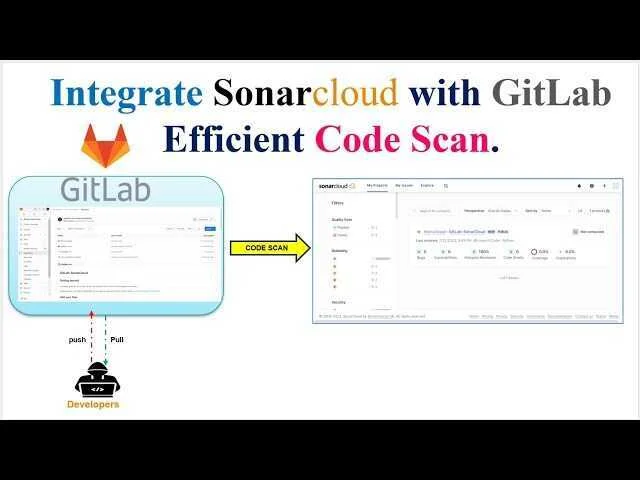
2. GitLab CI Integration
If you’re using GitLab CI, integrate SonarCloud using GitLab CI/CD variables and scripts.
Define Variables
In your GitLab project settings, define CI/CD variables for SONAR_TOKEN, SONAR_PROJECT_KEY, and SONAR_ORGANIZATION.
Update .gitlab-ci.yml
Modify your project’s .gitlab-ci.yml file to include a SonarCloud job. Use the predefined script provided by SonarCloud.
# .gitlab-ci.yml
sonarqube_scan:
  script:
    - sonar-scanner
Running SonarCloud Analysis in Your Pipeline
With the integration in place, your CI/CD pipeline should now automatically trigger a SonarCloud analysis whenever code changes are pushed or merged. Monitor your CI/CD logs for any issues related to the SonarCloud analysis.
To maximize the efficiency of your GitLab integration, consider configuring the SonarCloud job to run exclusively on merge requests or specific main branches rather than every single minor commit. Running comprehensive static analysis on every rapid, work-in-progress commit can significantly slow down pipeline execution times and quickly burn through CI/CD computing minutes. By utilizing GitLab’s rules or only/except syntax, developers receive rapid, targeted code quality feedback right when they need it—during the critical code review phase—without unnecessarily bogging down the day-to-day development workflow.
Interpreting SonarCloud Reports
1. Access SonarCloud Dashboard
Navigating to the SonarCloud dashboard is the gateway to unlocking a wealth of insights into your project’s codebase. Here’s a detailed guide on accessing and exploring the SonarCloud dashboard:
- Login to SonarCloud:
- Open your web browser and navigate to SonarCloud.
- Log in with your SonarCloud account credentials.
- Select Your Project:
- On the dashboard, locate and click on the project you integrated into SonarCloud through your CI/CD pipeline.
- Explore Metrics:
- Dive into the various sections of the dashboard, each offering specific metrics on different aspects of your codebase.
- Pay attention to sections such as “Code Smells,” “Bugs,” “Vulnerabilities,” and “Code Coverage.”
- Drill Down into Reports:
- Click on individual metrics to drill down into detailed reports.
- Explore additional tabs or pages for a comprehensive view of your code quality.
- Review Historical Data:
- Utilize features that showcase historical data, allowing you to track code quality trends over time.
- Export Reports:
- Take advantage of SonarCloud’s export features to download and share detailed reports with your development team or stakeholders.
This dashboard exploration provides a holistic understanding of your project’s health, enabling informed decisions for further code improvements.
2. Understanding Metrics
Understanding the key metrics presented in SonarCloud reports is essential for deriving actionable insights. Here’s a breakdown of the crucial metrics and their significance:
- Bugs:
- Represents potential runtime issues in your code.
- Indicates areas that may lead to unexpected behavior or system failures.
- Vulnerabilities:
- Identifies security-related issues that could be exploited.
- Essential for ensuring the robustness of your code against potential threats.
- Code Smells:
- Highlights areas in the code that may impact maintainability.
- Suggests improvements to enhance the readability and longevity of the code.
- Code Coverage:
- Indicates the percentage of your codebase covered by unit tests.
- Higher coverage often correlates with a more reliable and stable application.
Grasping these metrics provides a comprehensive view of your codebase’s strengths and weaknesses, guiding your team towards strategic code enhancements.
Handling Quality Gate Failures
1. Understanding Quality Gates
Quality gates act as guardians, determining the fate of your build based on predefined metrics. Here’s a detailed exploration of understanding and configuring quality gates:
- Navigate to Quality Gates:
- In the SonarCloud dashboard, locate the section related to quality gates.
- Explore Default Gates:
- Understand the default quality gates provided by SonarCloud.
- These gates often include conditions related to code coverage, code smells, and other critical metrics.
- Customize Gates (if needed):
- Tailor quality gates to align with your project’s specific requirements.
- Define conditions that reflect the desired code quality standards for your team.
2. Addressing Issues
- Review SonarCloud Reports:
- In case of a build failure due to quality gate issues, navigate to the detailed SonarCloud reports.
- Identify Problematic Areas:
- Use the reports to pinpoint specific areas of your codebase that triggered quality gate failures.
- Pay attention to the type of issues (bugs, vulnerabilities, code smells) and their severity.
- Update Code to Meet Standards:
- Collaborate with your development team to address identified issues.
- Implement necessary code improvements to meet the defined quality standards.
Wrapping Up
SonarCloud gives your CI/CD pipeline an automated way to catch bugs, security issues, and maintainability problems before they reach production. Once it’s set up (account, token, config file, and a CI/CD integration), it runs on its own with every push, giving your team a consistent quality checkpoint without slowing anyone down.