

Electron’s biggest architectural cost is running a full Chromium instance per app, which means memory footprint and security discipline (specifically around contextIsolation and the preload script boundary) matter far more than most teams realize until they’re debugging a production issue. Getting IPC boundaries, process isolation, and update signing right upfront saves you from rewrites later, these aren’t things you bolt on after the app is already shipped to users.
- 1 Electron integrates Chromium with Node, which creates applications for the platform of desktops across. js, with basic files that are likely to be important such as index. html, preload. js, and main. js to organize application and its extensions and to contain specific functions and looks.
- 2 Electron has seven processes altogether: main and renderer in particular; the interaction between them is possible with the help of IPC modules, such as ipcMain and ipcRenderer for Node.js. js APIs and HTML DOM as the main conceptual areas of interest among the students of computer science.
- 3 Electron app distribution contains code signing and auto-update capabilities, utilities such as electron-forge and electron-builder help in creating releases on GitHub and guarantee app consistence between macOS and Windows.
Electron is a framework used for building the cross platform desktop application by binding Chromium and NodeJs.
Electron Fiddle
A tool or sandbox application used to perform experiments on Electron APIs or prototypes. If you have installed it then you can execute code using the Fiddle Editor button without copy paste the code.
File Structure of Electron App
In case of file structure, it has basically “index.html”, “preload.js” and “main.js”. Initially, when you start the development for an electron app you can use the “index.html” and “main.js” files only. In “index.html” file has the default content of the application and in “preload.js” add the functionality to load the custom components. And in the “main.js” file use the application methods and perform custom functions.
- Create a directory

- Change directory and give npm command


- Now create an “index.html” file in the above created directory and place the code.


- create an “main.js” file in the above created directory and place the code.
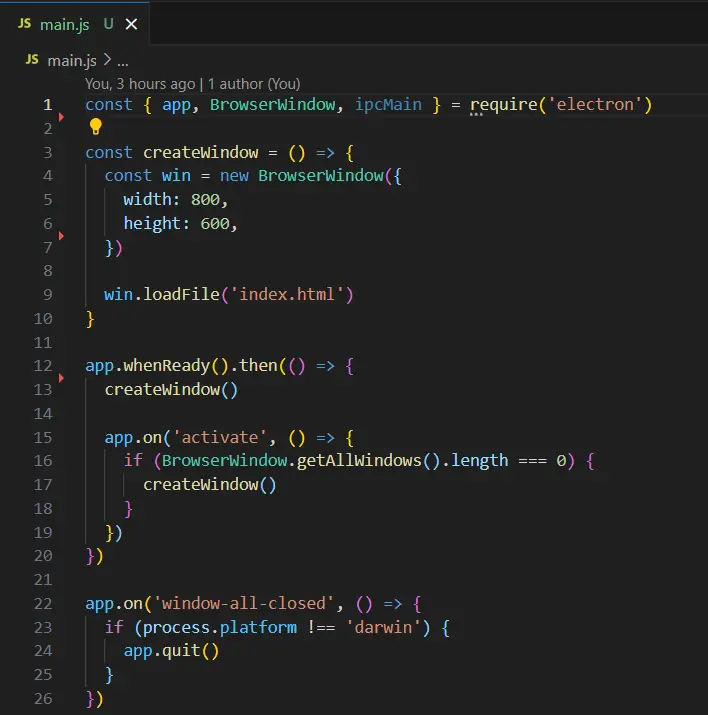
- Finally, after running the “npm start” command, you can see the home screen of the application.

Electron Process
Electron has two main processes which are main and renderer processes, these have different responsibilities and are not interchangeable.
Renderer Process
The renderer process is used to access the HTML DOM.
Main Process
The main process is used to access the NodeJs APIs.
IPC (Inter-Process Communication) Modules
Inter-process communication modules are used to communicate between the main process and the renderer processes. We can use the “ipcMain” and “ipcRenderer” modules.
Packaging
The packaging phase comes before distributing the electron app among the users.
Code Signing
The code signing process is certifying that the particular desktop application is created by a known source. If you have code signing certificates for windows and macOS then set the certificates in the respective configuration file. Windows and macOS have different signing systems.
macOS
Code signing is done at the application packaging level.
Windows
Distributable installer is signed.
Auto Update
Auto-update feature is provided by the Electron maintainers as free. But it has some conditions to follow:
- The app should be capable of running on macOS and Windows.
- The app should have a public github repo and can do work with private too but need to add credentials in the environment variables in that case.
- Builds should be published to GitHub releases.
- Builds should be code signed.
Github Publishers
Github publishers are used to publish the electron app. We have a choice with electron-forge and electron-builder, whereas electron-builder comes with full functionality flow but electron-forge has some limitations. And to work with this we need to add it as a dependency in the project by using the below NPM command.
electron-forge

To configure the publisher in the forge, you need to update the forge.config.js file. Add the github repository details in the configuration file of the forge, for which you will need the name of the repository and owner name (See the settings of the github).

Finally, you will have to add the script in the package. json file.
"publish": "electron-forge publish"electron-builder

Then, you will need to update the package.json file with this,

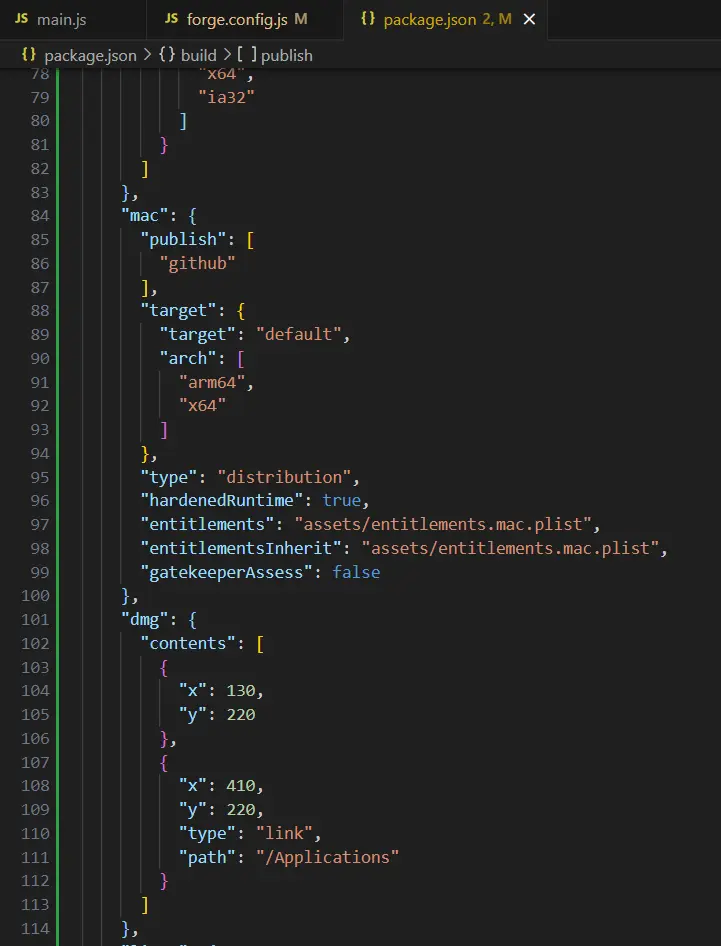
Add script in the package.json file

The same task we do by using the Github workflow.

Release
After successful execution of the script, you can see the releases on Github .

Why Electron Apps Use So Much Memory, and What You Can Actually Do About It
The most common complaint about Electron apps, Slack, VS Code, Discord, is memory usage, and it’s not an accident of bad coding, it’s structural.
- Each Electron app includes its own copy of Chromium. Unlike a browser tab where all tabs share one copy of Chromium running across tens of browser tabs, each instance of an Electron app that you have open has its own copy running.Two instances of an Electron app open means two copies of Chromium, not one shared among them.
- The renderer process for an Electron app running a BrowserWindow is on average 100-200MB of RAM just on baseline before your app’s code has even run – that’s just Chromium’s baseline cost of doing business. Multiply that by how many BrowserWindows you’re opening and that can add up quickly if you’re not careful.
- What helps is not spawning windows unless you have to (lazy loading), closing windows you’re not actively using (not just minimizing to tray), and being mindful of not creating extra renderer processes for every little popup or dialog when a native alternative would be more efficient. None of this will eliminate Chromium’s baseline cost but it helps prevent apps from accidentally blowing up their memory usage by needlessly forking new renderer processes.
Context: The Security Setting That Should Never Be Off
This is arguably the single most important security decision in an Electron app, and it’s also the one most likely to be misconfigured in older tutorials and boilerplate you’ll find online.
- With
contextIsolationdisabled (the old default, changed totrueby default since Electron 12), your preload script and the web page’s JavaScript share the same global scope. That means any script running in the renderer, including a compromised third-party dependency or an injected script from a remote page you load, has direct access to whatever Node.js APIs your preload script exposed. - With
contextIsolationenabled, the preload script runs in an isolated context and can only expose specific, deliberate APIs to the page viacontextBridge.exposeInMainWorld(). The web page gets exactly what you hand it, nothing more. - The practical rule: if your app ever loads any remote content, an embedded webpage, a support widget, an ad, anything not 100% authored by you, running with
contextIsolation: falseis a genuine attack vector, not a theoretical one. Full Node.js access from a compromised renderer means arbitrary code execution on the user’s machine, and Electron apps have shipped this exact vulnerability in the past.
Designing the IPC Boundary Properly
The blog mentions ipcMain and ipcRenderer as the mechanism for communication, but how you structure that communication is where most real-world Electron security and maintainability issues actually show up.
- Don’t expose whole modules over IPC. A common early mistake is to expose some generic invoke function which allows the renderer to call any main-process method by name, thus giving the renderer almost as much power as the main process anyway.
- Define an explicit, narrow API surface. In your preload script, expose named functions like
saveFile(),getUserPreferences(),checkForUpdates(), each bound to a specific, validated ipc channel. The renderer should never be able to request the main process do something you didn’t explicitly design for it to do. - Validate all data crossing the boundary. The data the renderer is sending to the main process should be sanitized with the same care you would for an external API call, not assumed to be safe simply because it’s your own code sending it. Renderer processes can be compromised through injection even if your code isn’t doing anything wrong.
Native Module Integration: Where Electron Gets Genuinely Complicated
A lot of desktop apps need something a browser environment can’t provide, direct filesystem access beyond Node’s basics, hardware integration, USB devices, or performance-critical native code. This is where Electron’s Node.js foundation becomes both a strength and a source of real pain.
- Native Node modules (those that require compiling C++ code) need to be rebuilt against the version of Node that Electron is using. Tools like
electron-rebuildmake this easier, but it’s a process that can catch a lot of people out when a native module stops working after upgrading Electron. - These modules usually can’t be used in renderer processes anyway (without disabling
Node.jscontext isolation which is discussed below), so it’s probably worth considering that the ability to load native modules in renderer processes should be considered a privileged case rather than the default. - If you need to use any sort of “cross-platform” binaries, you’re going to need to build them for every target platform you want to support (Windows, Mac, Linux) and for every architecture (Intel vs. Apple Silicon on Macs). In practice, this is frequently the biggest barrier to actually releasing a native module-based Electron app, rather than the rebuilding the module itself, which is why people frequently use solutions like electron-forge or electron-builder to help with packaging.
Auto-Update Failure Modes Worth Planning For
The blog covers the requirements for enabling auto-update, but the failure modes around it are what actually determine whether users get stuck on a broken version or smoothly transition to a fix.
Staged rollouts are a thing, and a big thing. Rolling out an update to 100% of your user base at once is almost always a recipe for disaster. A single faulty release affects every single user. Both electron-builder’s update server, and services like Squirrel support percentage-based rollout; discovering a faulty update at 5% of your users is a much less chaotic affair than dealing with it at 100%.
Signature verification is mandatory, unless you’re not concerned with users’ safety. In practice, this means that code-signed artifacts are a requirement to be accepted by most OS-level update mechanisms.
Partial or corrupt downloads are a possibility, particularly on unstable connections. The update process should account for this by verifying that the downloaded update is intact, and not using it if it’s not; the alternative is an update that leaves the application in an unusable state, and a user that has to resort to manual methods to fix it.