


Ionic Appflow Live Updates lets Capacitor apps deliver web-based changes without requiring a full app store release. By configuring the Live Updates SDK, choosing an appropriate update method, managing deployment channels, and testing builds before production, teams can make mobile app updates faster and smoother while maintaining control over the release process.
- 1 Streamlined Updates: Thus, the integration of the Live Updates SDK in the Capacitor apps provides the ability to deliver new features and improvements to the users making them always up to date, without waiting for the update from the application.
- 2 Flexible Update Methods: The SDK offers various auto-update methods, from background updates to immediate force updates, allowing you to choose the best strategy based on your app’s update needs and user experience goals.
- 3 Efficient Integration: By following the straightforward installation and configuration process, including setting up Appflow and handling updates programmatically, developers can efficiently manage app updates and enhance user engagement.
In this era of fast-changing mobiles apps, it is essential that you make an effort up keep the codes of your apps bug free and loaded with the recent routine updates. Through Ionic Appflow dashboard, You can make easily implement the live update which in turn will be seamless process. This practical would follow this procedure of enabling Live Updates feature in Capacitor App and also will discover different methods for optimization of the update procedure.
Installation and SDK Configuration
The Live Updates API, which is easily connected with Capacitor app programmatically as it provides direct exposed SDK API functions, brings the advanced features such as handling UI/UX details to your application.
The SDK also gives developers control over how updates are checked, downloaded, and applied. Before configuring the update process, make sure the Live Updates package is installed and synchronized with the Capacitor project. This allows the application to communicate with the Live Updates service and use the selected update strategy.
To begin, install the Live Updates SDK within your Capacitor app project:
1 2 | npm install @capacitor/live-updates npx cap sync |
After that, the Live Updates SDK is meant to be implemented into your capacitor.config.ts (packages.json) file. Add a “LiveUpdates” configuration section under the plugins, and set the autoUpdateMethod to ‘none’ to utilize the SDK API:Add a “LiveUpdates” configuration section under the plugins, and set the autoUpdateMethod to ‘none’ to utilize the SDK API:
1 2 3 4 5 6 7 8 9 10 11 12 13 | import { CapacitorConfig } from '@capacitor/cli'; const config: CapacitorConfig = { plugins: { LiveUpdates: { appId: 'xxxxxx', // Your unique app ID channel: ‘Production’, // Deployment channel autoUpdateMethod: ‘none’, // Method for automatic updates maxVersions: 5 // Maximum number of versions to keep } } }; export default config; |
In this configuration:
- appId: Use your unique app ID provided by the Live Updates service.
- channel: Specify the deployment channel, such as ‘Production’.
- autoUpdateMethod: Choose the method for handling automatic updates. Here, we’ve set it to none to implement the always latest live updates strategy.
- maxVersions: Determine the maximum number of versions to keep on the device.
Auto Update Methods
The update method dictates how your app interacts with the Live Updates service from Appflow, determining how it checks for and applies live updates. There are four available methods:
- Background (Recommended):
- This method operates seamlessly in the background, minimizing the splash screen’s display time.
- When an update is available, it’s downloaded and installed while the user continues to use the older version.
- The next time the app is launched, the new version is loaded, ensuring a smooth transition.
- Always Latest:
- Live updates are fetched in the background while the app is actively used.
- Upon the next launch of the app, whether it’s relaunched or switched to from another app, the latest version is immediately loaded.
- This method ensures that your app users are almost always running the latest version available.
- Force Update:
- With this method, new live updates are forcibly applied immediately upon app launch.
- The application hangs the splash screen to successfully update any existing version on the system and commence the process then and there.
- It ensures that launch of the app version is covered by the most advanced projection, however, with a delayed aftermath.
- None:
- Selecting this way, therefore, would imply that the SDK will no longer automatically check for or apply updates.
- Thereby this approach provides the uppermost control over the user experience, as all the logic of updates should be embedded programmatically by implementing Live Updates API.
Decide on the auto update method which fits your app’s update tactic as well as the explored user experience perspective.
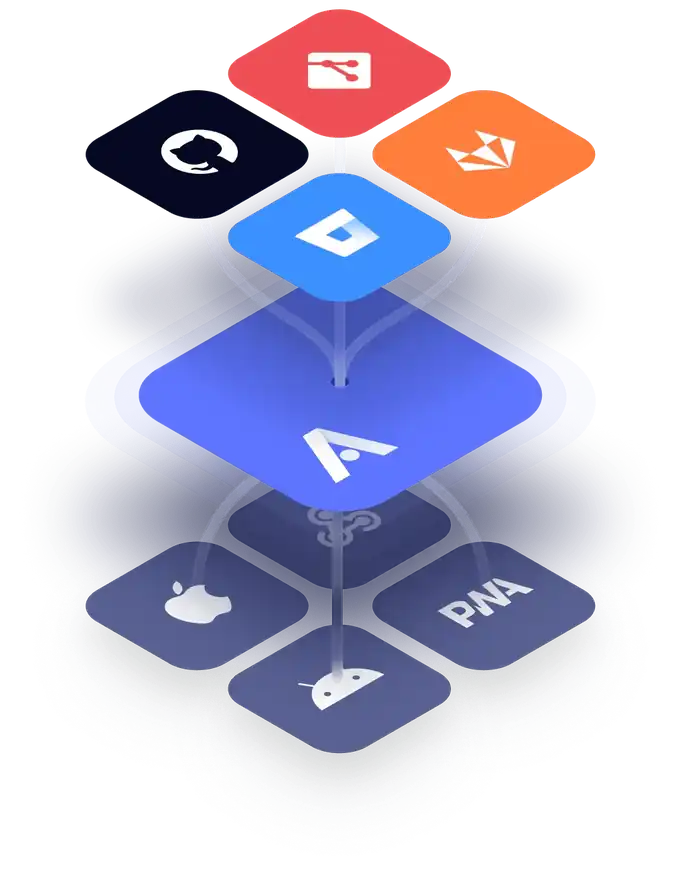
Set up and Configuration on AppFlow Dashboard
- Go to the official site and create an account, select subscription plans according to your needs for testing and development purposes use the free account.
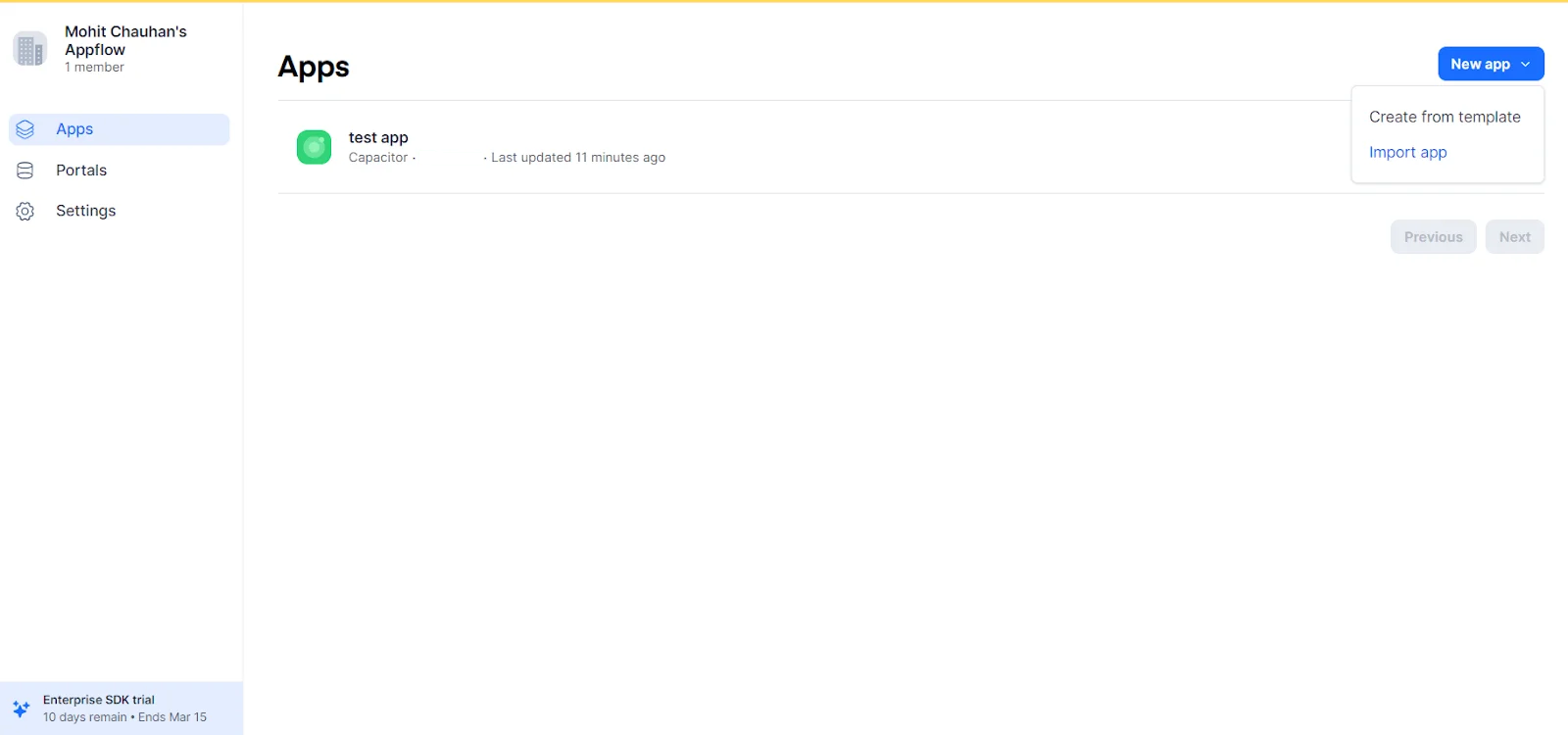
- Now create a new App, There are two ways to create an app, create from template or Import.
We will be using the import option in this Guide :
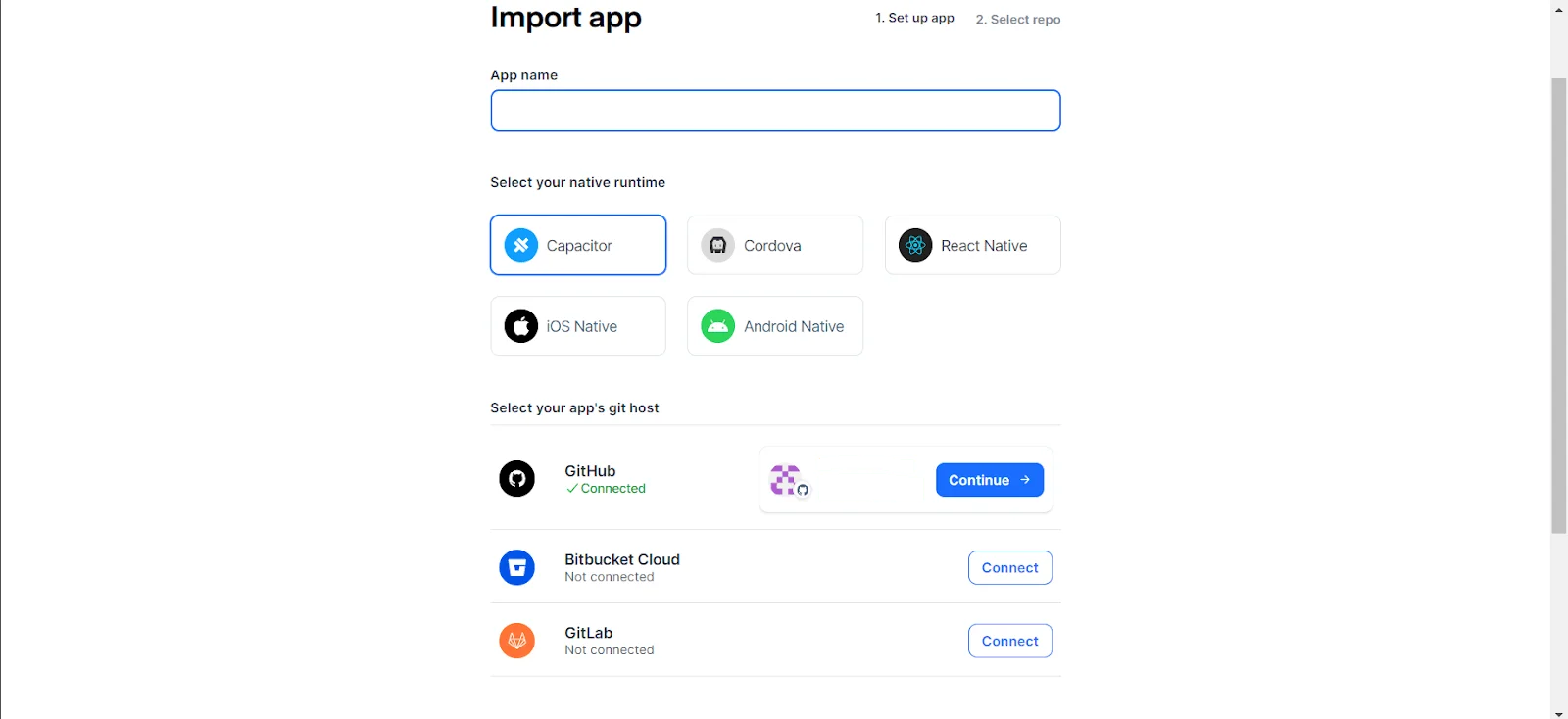
Enter App Name, Choose native runtime and connect your Github account from there it is really easier to import the app and get started.
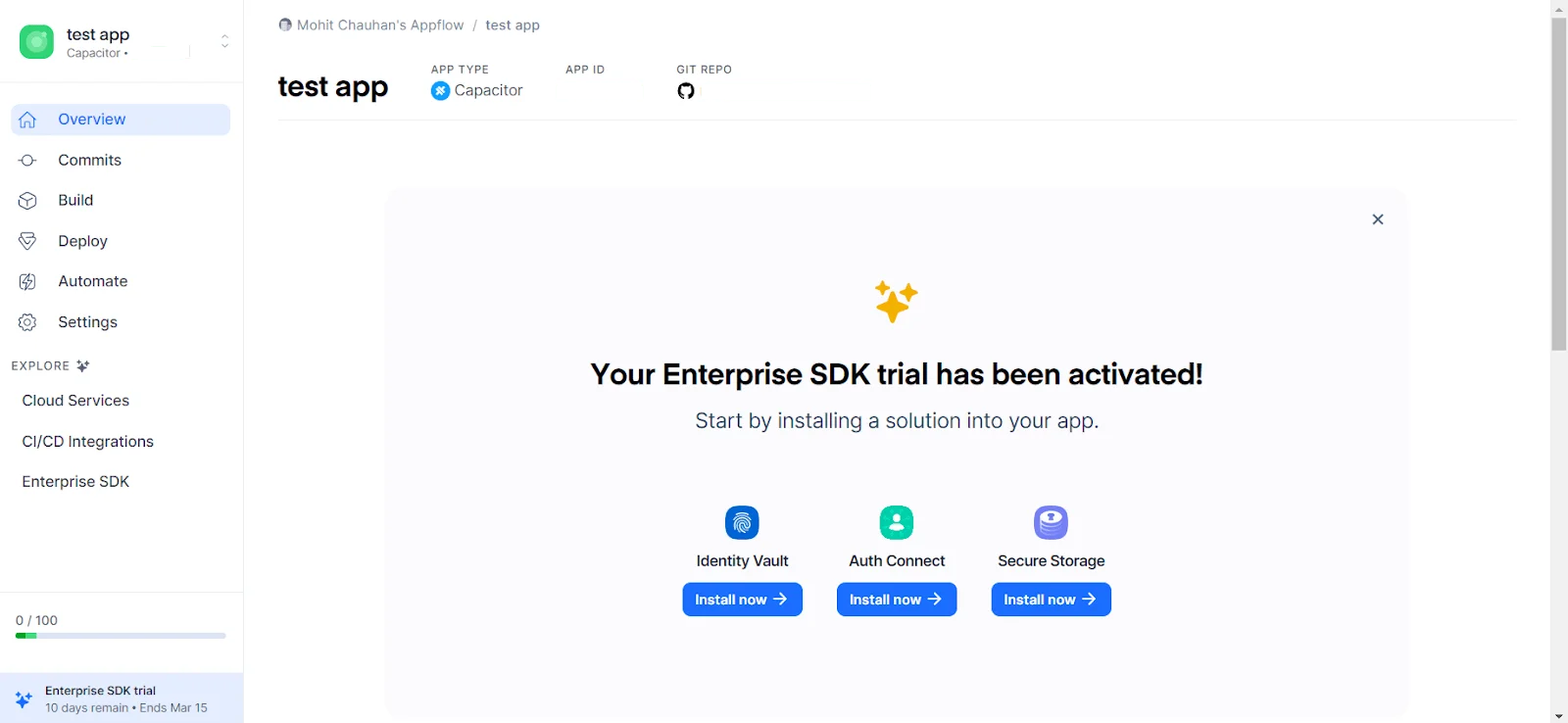
- Now the Live Updates feature works by using the installed Live Updates SDK in your native application to listen to a particular Live Update channel destination.
When a Web build is assigned to a channel destination, that update will be deployed to user devices running binaries that are configured to listen to the specified channel.So, let’s create a build first, CLick the New build Button.
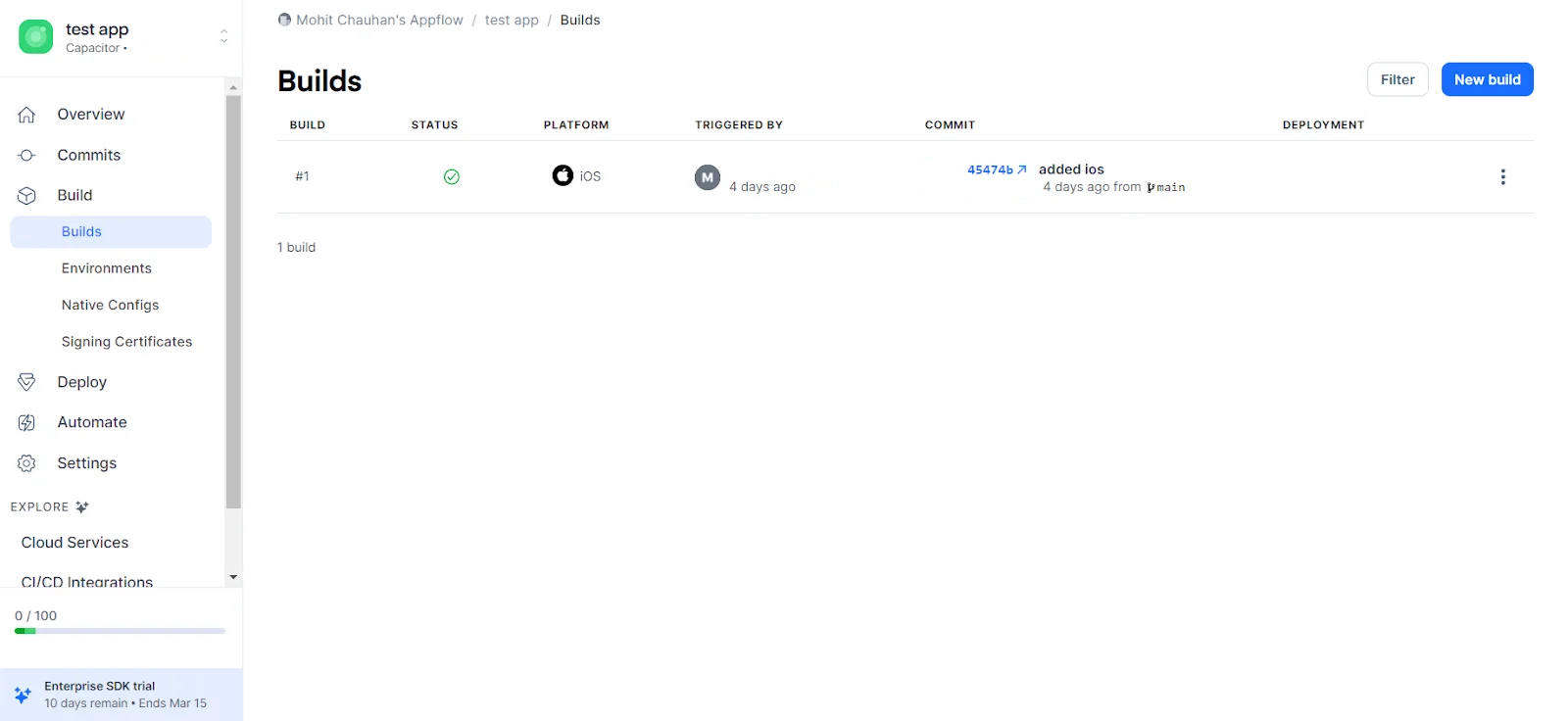
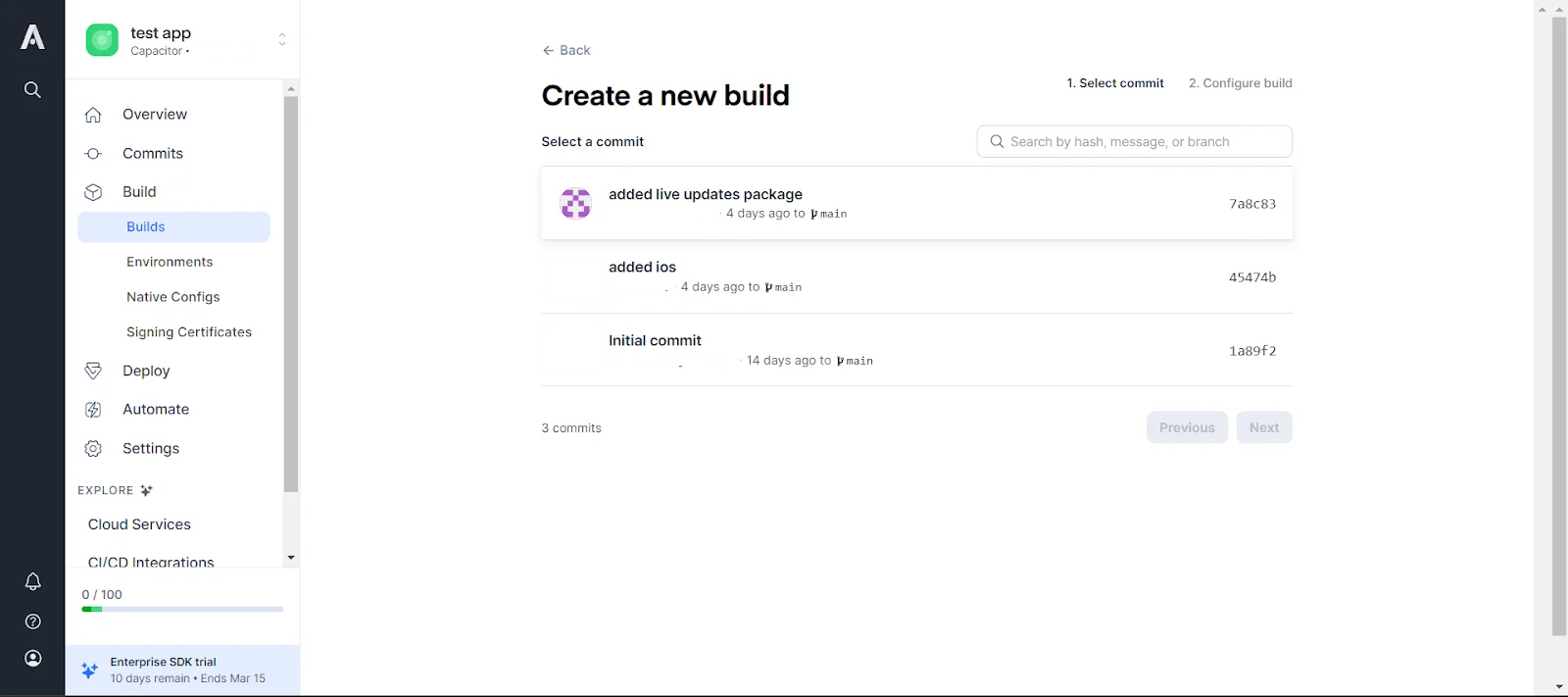
- Select a commit for the build.
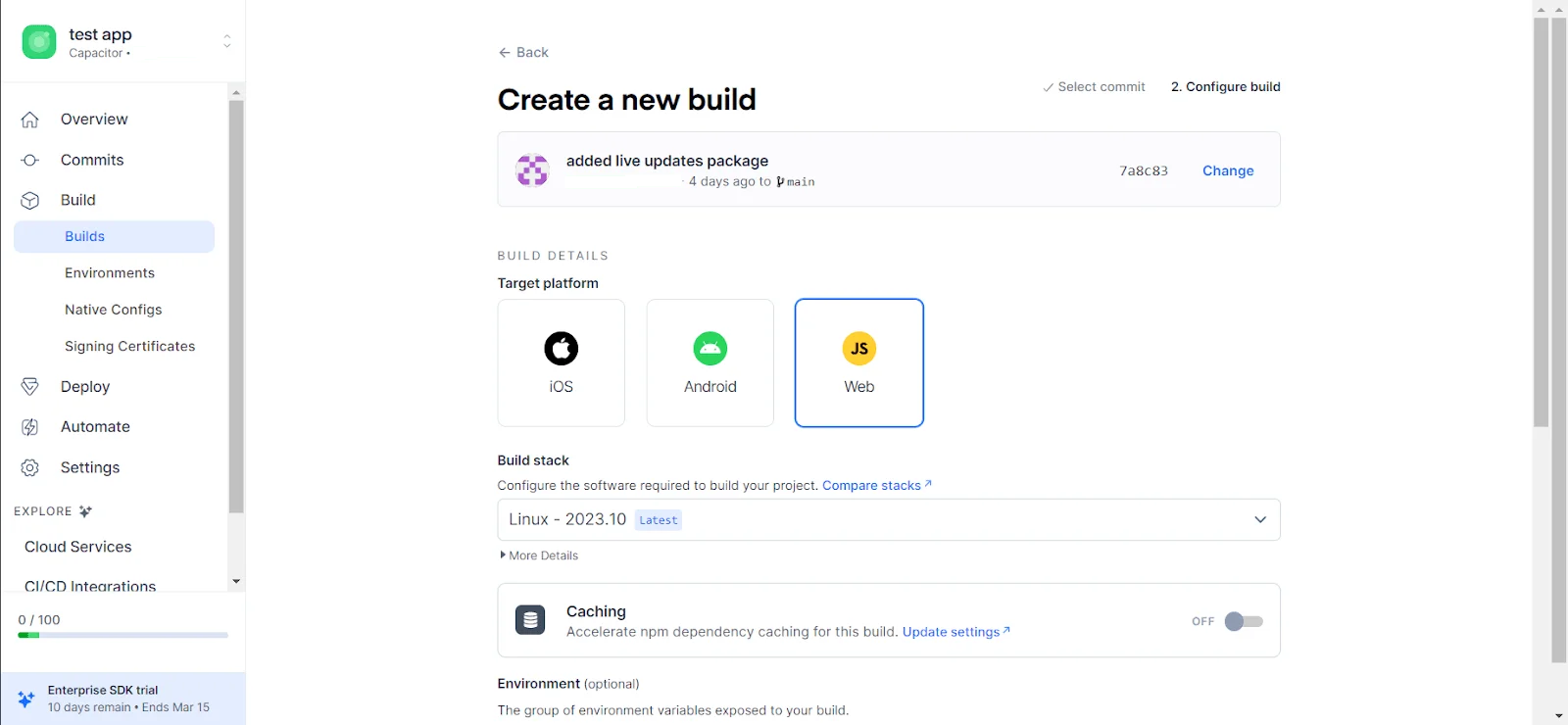
- Choose the web as the target platform.
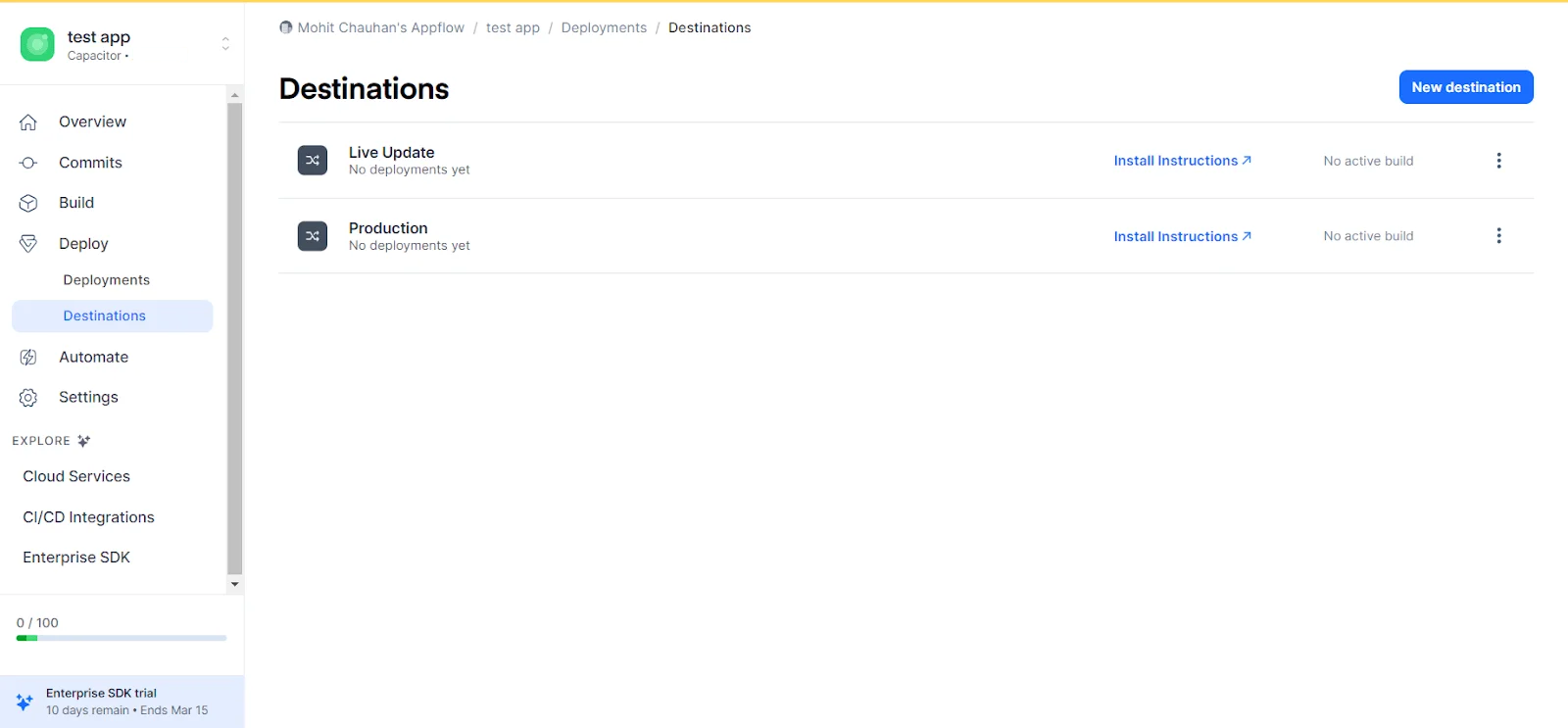
- Select a Channel.
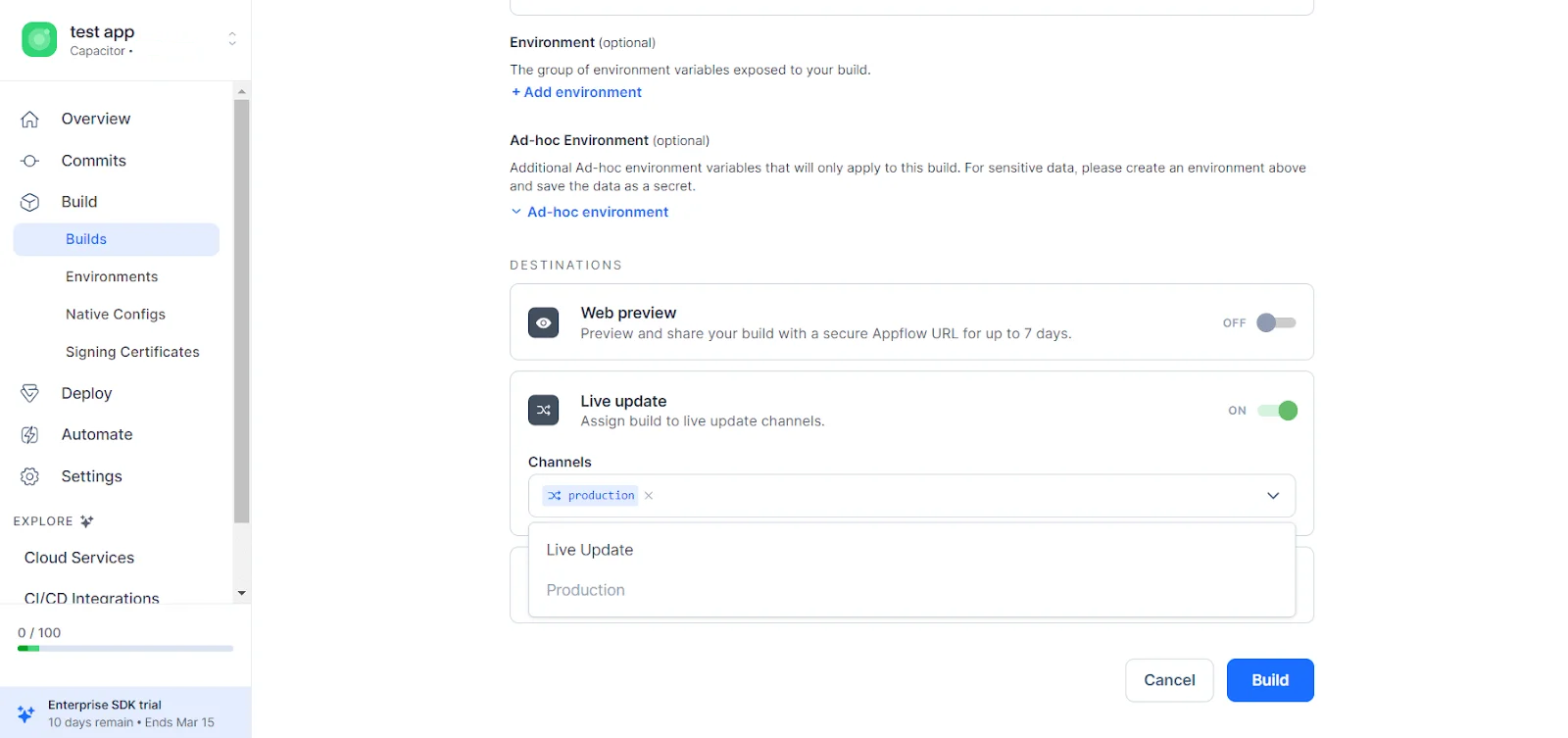
- Don’t worry if you can’t see any channels here, but a production channel is created there by default to create a new channel, click the New destination button and create a new channel.
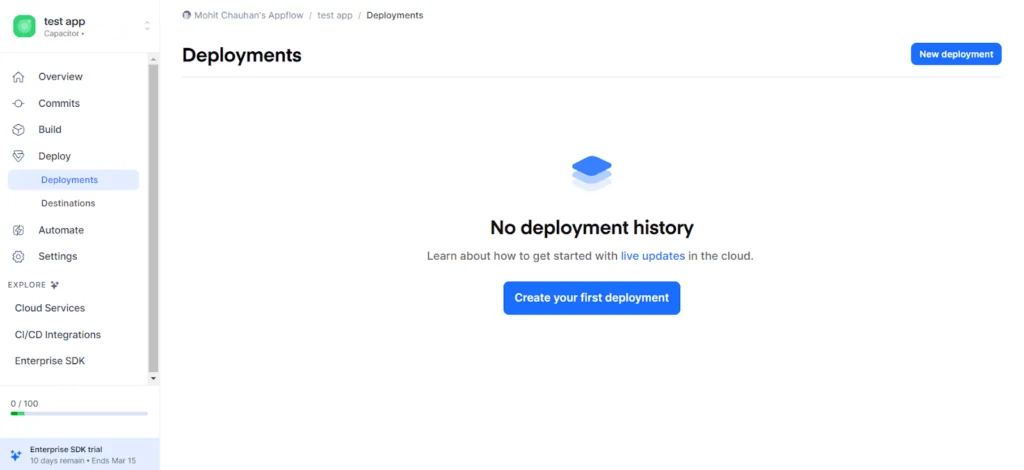
- After all these steps a new deployment will be added in the section.
Implement Live Updates in Your App
As this guide uses the always latest strategy and in this update strategy, live updates are downloaded in the background while the app is in use. After the user opens the app the next time, whether relaunched or after switching between apps, the app is reloaded immediately. This is the best approach for ensuring your app users are (almost) always on the latest version.
First, we need to set (autoUpdateMethod: ‘none’) in capacitor.config.ts as we have already done then install the Capacitor App plugin. We’ll use the resume event to fire an event when the app enters the foreground.
1 2 | npm install @capacitor/app npx cap sync |
Next, add the following code wherever your app startup code is. On app load, it calls LiveUpdates.sync() to check for a new live update and download it. Once the sync call has finished, the activeApplicationPathChanged property is inspected and value saved to Local Storage. This will only be set to true if a new live update was downloaded.
1 2 3 4 5 6 7 8 9 10 11 12 13 14 15 16 17 18 19 20 21 22 23 24 25 26 27 28 29 30 31 32 33 34 | import { Component, OnInit } from '@angular/core'; import { App } from '@capacitor/app'; import * as LiveUpdates from '@capacitor/live-updates'; @Component({ selector: 'app-root', templateUrl: 'app.component.html', styleUrls: ['app.component.scss'], }) export class AppComponent implements OnInit { constructor() {} async ngOnInit() { await this.initializeApp(); } async initializeApp() { try { // Register an event to fire each time the app resumes App.addListener('appStateChange', async (state) => { if (state.isActive && localStorage.getItem('shouldReloadApp') === 'true') { await LiveUpdates.reload(); } else { const result = await LiveUpdates.sync(); localStorage.setItem('shouldReloadApp', result.activeApplicationPathChanged.toString()); } }); // Initial sync on app load const result = await LiveUpdates.sync();| localStorage.setItem('shouldReloadApp', result.activeApplicationPathChanged.toString()); } catch (error) { console.error('Error initializing app', error); } } } |
Eventually, an app user will close your app or switch to another one. When they come back to your app, the resume event will fire. Immediately after this, shouldReloadApp is checked from Local Storage. If true, the app is reloaded before the user has a chance to use the app, updating them to the latest version. If false, another sync() call is made and again the activeApplicationPathChanged property is inspected and saved to Local Storage.
Managing Live Update Channels
Live Update channels can be described as mechanisms that enable developers to determine the target audience for a certain application version. Hence, the product will have multiple versions because the channels help keep different users’ groups isolated from each other. For example, such updates as development, testing, and production builds can be separated to make sure that the testing teams analyze the latest updates before they become publicly available.
As a result, the channels introduce a powerful feature that gives DevOps more control over the software delivery process. For instance, development builds can go through the testing channel to make sure that QA specialists approve them. Such a mechanism is also valuable because it decreases the probability of error-filled updates for end-users. It can be explained by the fact that the QA team checks the build before its public release, which means that the channel isolates other users from receiving malfunctioning updates.
Finally, the channels are cost-effective mechanisms that allow the DevOps team to perform a rollout strategy. It is critical for the software development process because the product update needs to be tested by a small group of users before its public release. It becomes possible when the application uses canary releases because the development team ensures that all components work correctly before they are offered to other users.
Testing Live Updates Before Production
Before updating the entire user base with a live update, it is essential to make sure that the latest release was implemented correctly on devices simulating the same channel configuration. The update must be tested on the same channel configuration to ensure that the new web build is loaded correctly and all other functions work.
The application’s primary screens, navigation, API, and other functions that may be impacted by the update, should be tested. The testing builds can be sent to a specific Appflow channel to simulate the production environment and later moved to the production channel upon successful testing.
In addition, the behavior of the application during different network loads should be considered. The update process should also be tested under various network conditions, such as slow network speed and loss of connection during the download. Moreover, updates must be checked for multiple OS versions and devices to ensure that all users receive the new build correctly.
Handling Live Update Failures
A live update process should also account for situations where an update cannot be downloaded or loaded correctly. Network interruptions, an unavailable deployment, or an issue within the new web build can prevent an update from being applied successfully.
Keeping a stable previous version available provides a safer update process. Teams should also monitor application behavior after deployment and be prepared to roll back or replace a problematic update when necessary. This helps reduce the impact of a faulty deployment on users.
Applications should handle synchronization errors gracefully instead of blocking the user from accessing the existing version. Logging update failures and displaying clear messages when necessary can help developers investigate problems while maintaining a reliable experience for users with limited or unstable connectivity.
Optimizing the Live Update Process
The process of live update can be optimized in several ways, one of which is keeping the web builds up-to-date and reducing the number of changes to a minimum during each update. In such a manner, smaller size updates can be downloaded faster and synchronized without significant delays for users with slow internet connections.
The optimization technique that can be recommended refers to choosing the appropriate strategy for application updates based on their specific requirements. In this case, background updates are perfect for most applications as they do not interfere with everyday use, whereas the force update function is required when an update is critical. In addition, the optimization of the release channels combined with the mentioned above methods and techniques can be implemented.
Finally, developers should remove all the unnecessary components from the web builds, optimize images, and eliminate third-party libraries and dependencies if possible. It can also be beneficial to analyze the frequency of updates and only make those that are required while also releasing them on a regular schedule.
Conclusion
Incorporating Live Updates into your Capacitor app with Ionic Appflow offers a seamless way to keep your users engaged with the latest features and improvements. By following the steps outlined in this guide, you can ensure a smooth and efficient update process, enhancing the overall user experience of your mobile application.
References:
Doc for Migrating from Cordova to Capacitor-based SDK
Enabling Live updates using appflow with Cordova SDK
Self-hosted Live Updates Setup