

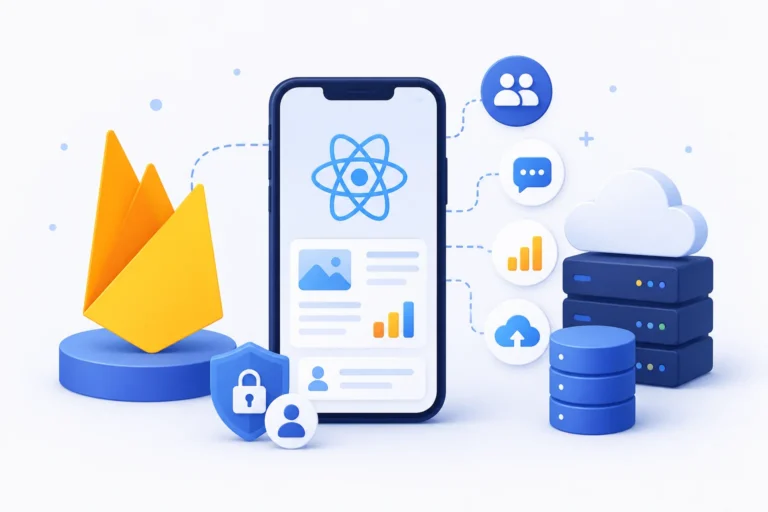
- 1 Firebase Benefits: Firebase is real-time databases, authentication, and storage system which can be integrated with the react native applications.
- 2 Integration Steps: Initialize Firebase in React Native through process of installation, and enabling it with services such as, authentication and database.
- 3 Platform Comparison: Firebase is easy to use and fast for mobile/web apps, Azure is suitable for various enterprise needs; OneSignal is the best in simple push notifications.
Introduction
Firebase has emerged as a robust and flexible platform for building and managing various aspects of your mobile applications. In this guide, we’ll walk you through the process of integrating Firebase into your React Native app, covering both iOS and Android platforms.
Why Choose Firebase?
Firstly Firebase offers a suite of tools and services that simplify app development, including real-time database, authentication, storage, analytics, and more. Secondly Its ease of use and cross-platform compatibility make it an excellent choice for React Native projects.
A Firebase project is not the same thing as your React Native repo. You make the project in the console first. Then you add an iOS app and an Android app under that project. Each one gets its own config file. If you skip one platform, Auth will work on the phone you tested and crash on the other.
The npm package in the article is the core. You still add @react-native-firebase/auth, /database, /firestore, or /messaging when you call those APIs. Installing only /app and then importing auth will fail at runtime. After npm install, rebuild the native apps. Metro reload does not pick up native modules.
react-native link is for old RN. On 0.60 and later, autolinking does that job. If you run link on a new app you can double-register a package and get a weird iOS build.
GoogleServices-Info.plist has to be a member of the Xcode target, not just sitting in the folder. The bundle ID in that file must match the app. A typo there is the usual “Firebase App not configured” on a device.
AppDelegate.m is the old Objective-C entry. A lot of new RN apps use AppDelegate.swift. Same idea: import FirebaseCore and call FirebaseApp.configure() before the rest of startup. If you paste the .m snippet into a Swift project, Xcode will not meet you halfway.
On Android, google-services.json goes in android/app. The classpath line belongs in the project-level Gradle file. apply plugin goes at the bottom of the app-level file. Mixing those two files is a classic copy-paste miss. Pin the Google Services plugin to a version your AGP accepts. 4.3.15 is what the post shows. If your Android Gradle Plugin is newer, check the Firebase docs for a matching plugin line before you chase a 20-line Gradle error.
Step 1: Setting Up Your React Native Firebase Project
Start by creating a new project on the Firebase Console. Follow the prompts to set up your project and enable the desired Firebase services.
Step 2: Installing Firebase Dependencies
In your React Native project directory, install the necessary Firebase dependencies using npm or yarn:
npm install –save @react-native-firebase/app
Step 3: Linking Dependencies (For React Native < 0.60)
If your React Native version is below 0.60, you’ll need to link the native modules:
react-native link @react-native-firebase/app
Step 4: Configure Firebase for Platforms
iOS Integration:
- Drag and drop the downloaded `
GoogleServices-Info.plist` file into your Xcode project. - In Xcode, open the project settings, select your target, and navigate to the “Info” tab.
- Add the bundle identifier from your Firebase project to your Xcode projects “Bundle Identifier.”
- Open your `AppDelegate.m` file located in `ios/YourAppName` folder and add the following code inside the `
application:didFinishLaunchingWithOptions:` method:
#import <Firebase.h>

– (BOOL)application:(UIApplication *)application didFinishLaunchingWithOptions:(NSDictionary *)launchOptions {

    [FIRApp configure];

  // Other code

}
Android Integration:
- Copy the downloaded `
google-services.json` file into your `android/app` folder. - Open the `build.gradle` file (located at `
android/build.gradle`) and add the following inside the `dependencies` block:
buildscript {

  dependencies {

    //…

    classpath ‘com.google.gms:google-services:4.3.15’

    //…

  }

}
- At the bottom of the
build.gradlefile (located atandroid/app/build.gradle) , add:
apply plugin: ‘com.android.application’

apply plugin: ‘com.google.gms.google-services’
Auth examples in the post are email and password. They throw. Wrap them. A failed sign-in is not a crash unless you ignore the promise. Enable Email/Password in the console or the SDK returns an error that looks like a config bug.
Realtime Database and Firestore are different products. Do not write to both “to be safe.” Pick one data model. Realtime Database is a JSON tree. Firestore is documents and queries. The where().get() example is Firestore. The ref().on(‘value’) example is Realtime Database. Mixing the paths in your head is how you debug an empty snapshot for an hour.
Rules start open on many test projects. Lock them before you ship. A rule that says request.auth != null && request.auth.uid == userId is the minimum for user-owned data. Open rules plus a collection of emails is a headline waiting to happen.
FCM on iOS needs a real APNs key or cert in the Firebase console, plus the Push Notifications capability in Xcode. Without that, Android test messages work and iOS stays silent. On Android, a debug build and a Play build can use different google-services files if you have flavors. Check which file the flavor actually packages.
Firestore charges on reads. A chat screen that attaches a listener and prints every keystroke will surprise you on the bill. Estimate reads before you put on() on a busy list.
Expo managed workflow does not follow this native linking path. You need a dev client or a bare app for @react-native-firebase. The JS Firebase SDK can do some Auth and Firestore in Expo. Crashlytics and messaging are weaker there.
Step 5: Using Firebase Services
Let’s cover some common Firebase services integration.
Firebase Authentication:
import auth from ‘@react-native-firebase/auth’;

// Sign Up

auth().createUserWithEmailAndPassword(email, password);

// Sign In

auth().signInWithEmailAndPassword(email, password);

// Sign Out

auth().signOut();
Real-time Database:
import database from ‘@react-native-firebase/database’;
// Read Data

const ref = database().ref(‘path/to/data’);

ref.on(‘value’, snapshot => {

  // Handle snapshot data

});

// Write Data

ref.set(data);
Cloud Firestore:
import firestore from ‘@react-native-firebase/firestore’;

// Add Data

firestore().collection(‘collectionName’).add(data);

// Query Data

firestore().collection(‘collectionName’).where(‘field’, ‘==’, value).get();
Step 6: Handling Push Notifications
For push notifications, you can use Firebase Cloud Messaging (FCM) and react-native-firebase/messaging library. The setup involves additional configuration steps for both platforms.
iOS:
– Configure APNs (Apple Push Notification service) certificates.
– Integrate the messaging module for handling FCM notifications.
Android:
– Set up a Firebase project for Android.
– Configure FCM settings in your Android project.
Firebase vs Other Cloud based Platforms: A Quick Comparison:
- firebase vs azure: Firebase is a focused, user-friendly cloud platform for quick mobile and web app development, ideal for startups. Azure, a comprehensive and versatile cloud solution, caters to diverse enterprise needs, emphasizing scalability and an extensive service range. Choose Firebase in firebase vs azure for simplicity and speed or Azure for robust solutions tailored to larger-scale enterprise requirements.
- Onesignal vs firebase: OneSignal excels in streamlined push notification and in-app messaging services, prioritizing simplicity and quick integration for enhanced user engagement. In contrast, Firebase is a comprehensive mobile and web development platform, encompassing a broader suite of services, including Firebase Cloud Messaging (FCM) for push notifications. Developers can choose OneSignal in onesignal vs firebase for a focused solution or opt for Firebase when seeking an all-encompassing platform for various app development needs.
- Firebase with Ionic: Firebase and Ionic together offer a potent solution for mobile app development. With Firebase’s seamless backend services and Ionic’s cross-platform framework, developers can rapidly create scalable and visually appealing mobile applications. This dynamic combination ensures ease of use, real-time data sync, and efficient cross-platform development.
Azure vs Firebase in the post is the right split: Firebase is faster to stand up for a mobile MVP. Azure is the better home when the same company already lives in AD, Functions, and a SQL estate. OneSignal is a notification specialist. If you already pay for Firebase, FCM is usually enough until you need OneSignal’s extra messaging UI.
Ionic plus Firebase is a different stack than this RN guide. Do not copy the AppDelegate steps into an Ionic project and expect them to apply.
Anonymous auth is fine for a prototype. It is a mess when you later want to attach a real email to the same uid. Plan the upgrade path or you will orphan data.
Storage rules are as important as Firestore rules. A public bucket with user uploads is a malware host. Sign URLs or lock paths to the uid.
Analytics is easy to turn on and easy to make illegal if you log PII. Do not put email or a name in a parameter. Check the console debug view on one device before you trust the dashboard.
If you use both a staging and a prod Firebase project, never ship the staging plist in a store build. Flavors and schemes exist so you do not do that at 11pm.
Conclusion:
In conclusion Integrating Firebase into your React Native app provides a powerful set of tools to enhance user experience, manage data, and track analytics. By following the steps outlined in this guide, you’ll be well on your way to leveraging Firebase’s capabilities in your mobile application, both on iOS and Android platforms. As an all-in-one React Native Firebase web development company, we at Innostax can provide our services for a scalable and responsive Firebase application. Happy coding!