


- 1 Nosto offers seamless integration with popular e-commerce platforms like Shopify, Magento, WooCommerce, and BigCommerce, enabling automatic tracking of customer behaviors for personalized recommendations.
- 2 The Nosto Dashboard allows users to set up various recommendation types, customize widget designs, and utilize AI-driven personalization without the need for extensive coding.
- 3 Utilize Nosto's analytics to monitor key metrics such as conversion rates and average order value, and optimize recommendations through personalization rules and strategic placement for maximum effectiveness.
Product recommendations form the backbone of modern e-commerce today. Not only do they make the shopping experience more enjoyable but they also significantly drive up conversions and average order value. With Nosto, the premium AI-powered personalization platform makes it possible to add personal product recommendations painlessly across your e-commerce website without needing heavy coding or API usage.
That is why, in this tutorial, we are going to focus on how to set up and customize product recommendations through the Nosto Dashboard, mainly for software developers and e-commerce managers, who tend to be more familiar with a code-light and UI-driven approach.
1. Integrating Nosto into Your E-Commerce Platform
To be able to make product recommendations via Nosto you must, first of all, make sure that Nosto is connected to your e-commerce shop. Well, guess what? Nosto’s providing integration plugins directly via Shopify, Magento, WooCommerce, and BigCommerce.
a) Platform-Specific Integration
1. For Shopify:
- Install the Nosto Shopify App from the Shopify App Store.
- Log in to your Nosto account or sign up if you have not done that yet.
- Once installed, Nosto will automatically track such customer behaviors as views of products, adding to carts, and purchasing
2. For Magento:
- Download Nosto extension directly from Magento Marketplace.
- On installing, it leads you through an onboarding process to connect Nosto with your store.
3. For WooCommerce:
- Download and install Nosto WooCommerce plugin from the WordPress Plugin Directory.
- After activation, go to your WooCommerce settings to configure Nosto.
With Nosto integrated, it will automatically inject tracking scripts into your site so that data can be collected to power personalized recommendations.
2. Setting Up Product Recommendations Using the Nosto Dashboard
Once you have integrated Nosto on your e-commerce platform, you can start setting up product recommendations. With the interface of the Nosto dashboard, you can set up various recommendation types without ever having to write a line of code.
a) Accessing Product Recommendations in the Dashboard
- Log in to your Nosto account and access your dashboard.
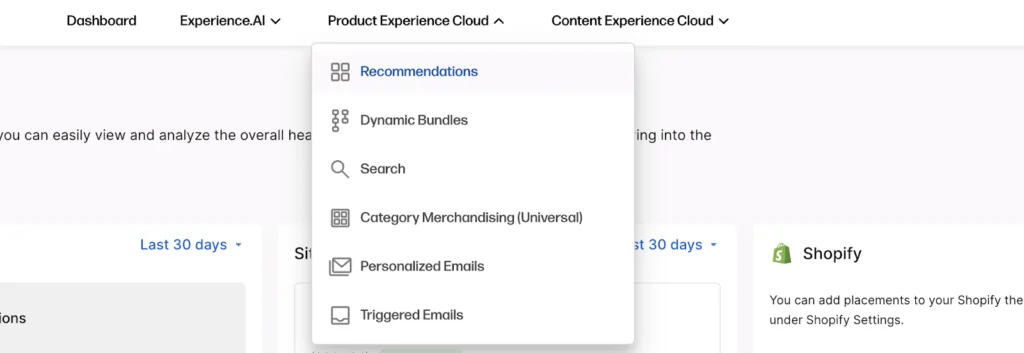
- From your top menu, click on “Product Recommendations”. Here you’ll find many different types of recommendations, including Related Products, Recently Viewed, Trending Products, and several others.
b) Choosing Recommendation Types
Nosto provides you with a selection of pre-built recommendation templates for each area of your site. Here are the most common ones you should probably implement:
- Homepage Recommendations: These are targeted to new or returning visitors to present personalized products when they land on your site. You can set this to show popular products or new arrivals.
- Product Page Recommendations: These suggest related products based on what a customer is currently viewing.
- Cart Page Recommendations: These showcase related or upsell items as the customer progresses in their purchase process.
- Post-Purchase Recommendations: Once a customer has placed an order, Nosto can suggest complementary products to the latter order.
Select which of the templates you want to display the recommendation from.

c) Setting up a Recommendation Widget
Once you have determined the appropriate type of recommendation, you will then need to configure the following settings:
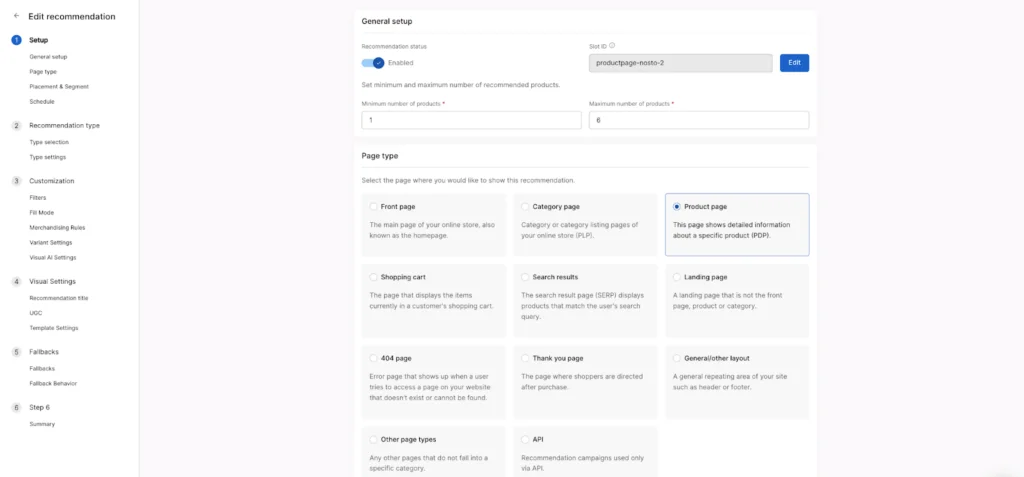
1. Select Location on the Page:
Nosto lets you choose where on the page the recommendation block will appear. For example, on a product page, you might want the recommendations to appear below the product description or in a sidebar.
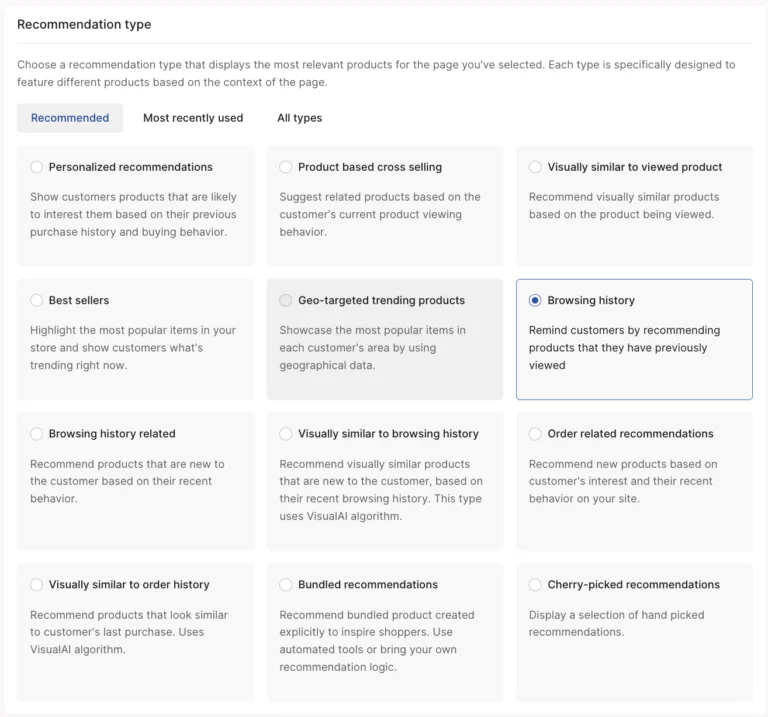
2. Choose Recommendation Logic:
- Best Sellers: Show the most popular products in your store.
- New Arrivals: Highlight the latest products added to your catalog.
- Frequently Bought Together: Displays products that customers often tend to buy together with the displayed product.
- Personalized: Take advantage of Nosto’s AI algorithm-based personalization recommendation system and make recommendations to the customers by his browsing and purchasing history.
3. Filter Products:
Filtering capabilities in recommendations would have provided you to make much more relevant recommendations. For instance, they could be categorized under a product category, or eliminate some products, or even set specific price ranges.
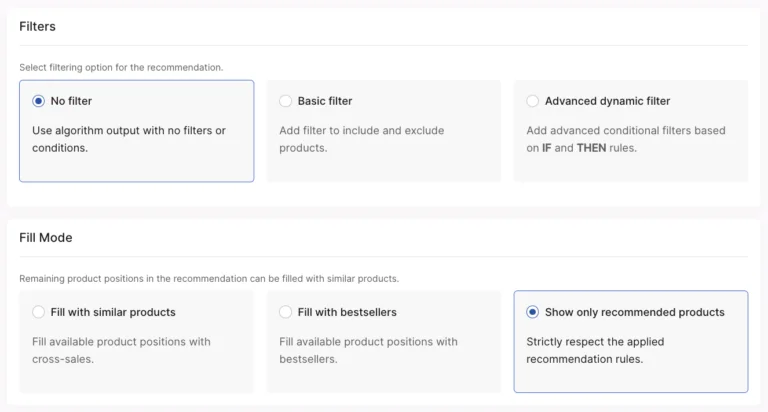
4. A/B Testing:
A/B Testing: In Nosto, you will be able to test various recommendation strategies. You can set up variations-for instance, showing “New Arrivals” vs. “Best Sellers”-and see which one performs better with the help of analytics already built in.
d) Customizing the Design of Your Widgets
To make sure that the recommendation widgets reflect the look and feel of your website, Nosto makes it easy to customize the design. You can:
- Adjust layouts (grid, list, carousel, etc.).
- You can change color and font codes to those on your website.
- You can also change the size and spacing of product images.
You get a better control over the design aspect, too, as you can inject custom CSS directly from the dashboard.
Going Beyond the Dashboard: When to Use Nosto’s API Instead
The dashboard covers most of the use cases; nevertheless, if you are developing a headless storefront or a single-page application using React, Vue, or Angular, you will need to use either Nosto’s GraphQL API or JS API to customize it according to your needs. In this case, you should know that JS API is suitable for most cases because it allows to automatically track clicks and render recommendation templates, while the GraphQL API requires developers to build and render the UI themselves. Nosto recommends using the JS API for most of the headless storefronts, but you can also use the Graph QL API in some particular cases, such as rendering recommendation results into a custom component. Another important thing to note is that A/B testing and dynamic placements are not supported in Graph QL API compared to the traditional implementation using tags. For storefronts built with Shopify Hydrogen, there is a set of React components provided by Nosto, which significantly reduces the development effort compared to other headless solutions.
3. Tracking and Optimizing Recommendations
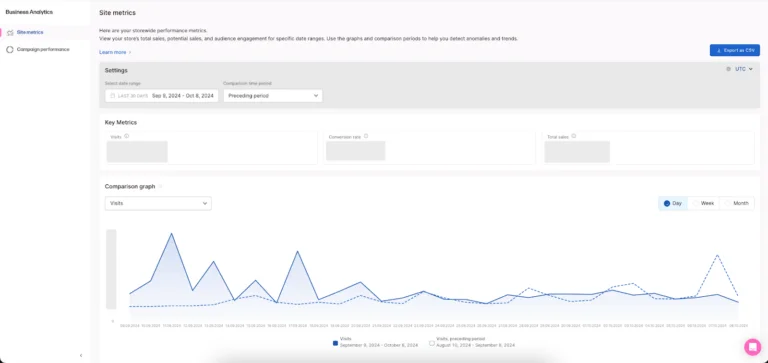
Once your recommendations are live, it’s crucial to monitor their performance. Nosto’s dashboard provides detailed analytics to help you understand how well your recommendations are working.
a) Analytics Dashboard
Nosto gives you insights into key metrics like:
- Conversion Rate: The rate of how many clicks of recommended products users are then buying.
- Average Order Value: Average amount of additional revenue generated by your recommendations.
- Engagement: Track the amount of ways users are interacting with your recommendations: clicks, hovers, etc.
b) Optimization Tips
To ensure that your recommendations are running at maximum, here are some optimization techniques to use:
- Personalization Rules: Dial in the rules Nosto uses to personalize product recommendations. For example, focus on products that are in stock or that are popular in a given region..
- Experiment with Placement: Experiment with different placements of your recommendation widgets. Examples of potentially good places to put them would be on the checkout page, because customers are already in a buying frame of mind, and may skew higher average order value.
- Fine-Tune Filters: If you have a large product catalog, apply filters so irrelevant items won’t show up in your recommendations. You can filter by price range, category, or even customer demographics.
Common Mistakes to Avoid When Setting Up Nosto
Some issues are frequent when companies begin to set up Nosto for the first time. First of all, it is worth mentioning that the most common mistake is using Nosto for making recommendations without allowing the algorithm to collect enough data about the user’s behavioral patterns. If the company has been launched recently, the best choice is to use simple methods like Best Sellers for making recommendations. What is more, many companies tend to add too many filters to a recommendation block, resulting in a tiny number of products that match the conditions. In addition, many organizations tend to ignore the A/B testing of the recommendation block placement. Sometimes, it is enough to move the block to the top of the website to increase the CTR by 20%. Finally, the last error is the neglect of the tracking script check after any theme or platform changes within the website, which may lead to inaccurate data tracking.
4. Advanced Features: Combining Recommendations with Pop-Ups and Content Personalization
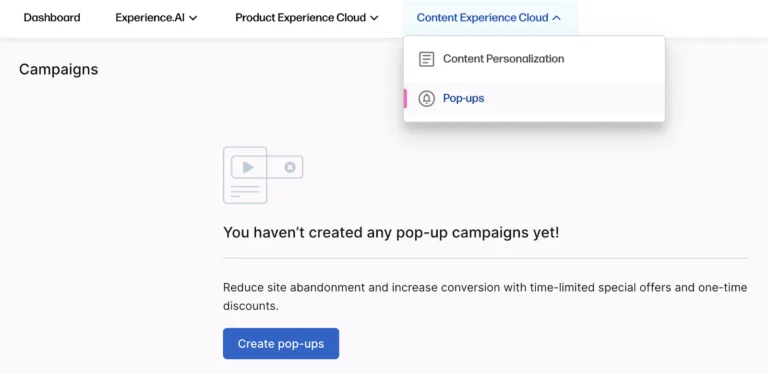
Nosto also provides advanced personalization features, including pop-ups and content blocks that you can use with product recommendations to create seamless user experiences.
a) Combining Pop-Ups with Recommendations
You can set up Nosto to deliver product recommendations-based pop-ups at the right time, like when a customer is about to leave the website. This might reduce bounce rates and also tend to keep users longer or encourage them to complete their purchase.
For example: Show a discount offer along with a product recommendation in a pop-up when the user adds an item to their cart but tries to leave the site.
b) Content Personalization
You can, for example, display different banners or promotions or even text content to different customer segments via Nosto’s Content Personalization. When combined with product recommendations, this type of personalization really serves to heighten the user experience.
How Nosto Compares to Other Personalization Platforms
In addition to the aforementioned solutions, there are also such players on the market as Dynamic Yield, Bloomreach, and Algolia Recommend, among others. Therefore, the question arises: why should the company choose Nosto instead of the rest? The reason is that each solution has its own advantages depending on the case. For example, Nosto is much more focused on the needs of e-commerce sites because its plugins for Shopify, Magento, WooCommerce, BigCommerce and others require minimal or even no coding at all; hence, they are aimed at a narrower audience of developers. Meanwhile, Bloomreach is more oriented toward enterprises with complex catalog management and advanced search capabilities.
Algolia, in its turn, tends to be used as search with recommendations being an extra, while Nosto allows for achieving a UI-first experience controlled by marketers with the option to fall back on APIs for more complex scenarios. In this case, a triple of GraphQL/JS is relatively balanced.
Conclusion
Nosto provides the strongest, most user-friendly dashboard to set up product recommendations without a need for custom API development or loads of programming. As a developer of software or an e-commerce manager you can fast configure, personalize, and fine-tune the recommendations with the goal to raise user engagement and increase sales.
By using Nosto’s templates, recommendation logic, and design options, you will ensure a very strong personalization of your shopping experience with minimal technical complexity. There is the ability to continue refining your strategy through dashboard performance monitoring for maximized impact from your recommendations.
You’ll get productive product setups that are easy to set up and very effective so you can focus on growing your business in confidence!
To learn more about Nosto and its capabilities, check out nosto’s official website.
For additional insightful articles and information, please reach out to us.