

- 1 Enhanced User Experience: Besides, the use of LinkedIn login among users makes their access to the application easy since they are assured of the security from the LinkedIn social platform. The use of this more personal method of login also reduces registration time and increases user activity with the application since the user does not need to enter too many more details for login.
- 2 Implementation Steps: To incorporate the login with LinkedIn, one is required to develop a LinkedIn Developer App plus, use the LinkedIn sign-in button HTML code on your site, and thirdly, implement OAuth 2. 0 to cope with the issue of authentication safely. It entails an access token acquisition as well as the utilization of the token to access the user profile information.
- 3 Benefits of OAuth 2. 0: OAuth 2. 0 helps to provide strong authentication to the users by enabling them authorize third-party applications to access data through limited measure while the actual credentials are concealed. This protocol is very important for ensuring security in different areas and applications ,web, iOS, and many others cross-platform applications.
Introduction
A smooth login experience can make or break how users feel about your platform. One effective way to simplify that experience is by adding a Custom Login with LinkedIn button.
LinkedIn is one of the most widely used professional networks in the world. Letting users sign in with their existing LinkedIn account means fewer forms, faster access, and less friction at the door.
This kind of authentication feature is just one piece of building a modern, user-friendly application. If you’re planning a larger project, our custom software services — including Android application development — can help you build a complete, secure platform from the ground up.
In this guide, we’ll walk through:
- Why LinkedIn login is worth adding to your platform
- A step-by-step implementation guide
- Security best practices to keep the process safe
Let’s start with the benefits.
Benefits of Integrating LinkedIn Login:
- Streamlined Entry: LinkedIn login gives users a familiar and easy sign-in option. Users who already have a LinkedIn account can access your platform without creating a new account or remembering another set of login details.
- Trustworthiness and Reputation: Connecting your platform with LinkedIn can improve its credibility. Users may feel more confident sharing their information and using your content when they know LinkedIn supports the login process.
- Access to User Insights: With LinkedIn login, you can request specific profile details such as name, email, and profile picture. This data can help you create a more personal user experience and more targeted content.
- Minimized Hurdles: Long and complex registration forms can discourage users from signing up. LinkedIn login reduces this problem by making the sign-up process simpler.
LinkedIn Login vs. Other Social Login Options
Social login is not limited to LinkedIn. Google and Facebook are two common alternatives. Each option has its own strengths. Knowing how LinkedIn compares can help you choose the option, or mix of options, that best fits your platform.
Google login is often a common choice for general consumer applications. Almost everyone has a Google account, and the sign-in process is fast and familiar. Facebook login can work well for platforms focused on social sharing or community engagement. It uses a network that many users check every day.
LinkedIn login is better suited to a different type of platform. It works well for B2B tools, recruitment platforms, networking apps, and business services. LinkedIn profiles often include job titles, company names, and work history. This can give you more useful professional data than a typical Google or Facebook profile. Users on professional platforms may also trust LinkedIn login more because it matches the purpose of the site.
Many platforms do not need to choose only one option. You can offer LinkedIn along with Google or Facebook. This lets users choose the account they use most. The right mix depends on your audience and the type of data that matters most to your application.
Why LinkedIn Login Works Well for Professional Platforms
LinkedIn login can be a strong choice for applications that serve business users. It gives users a familiar way to sign in while helping your platform collect useful professional profile data.
A simple login process can also reduce the time users spend creating an account. This can make onboarding easier and give users faster access to the features they need. For B2B applications, recruitment platforms, and professional networks, LinkedIn can fit naturally into the overall user experience.
LinkedIn login can also help keep user information consistent across your platform. With permission, details such as a user’s name, email, and profile information can be used to create or update their account. This reduces the need for users to enter the same details again during registration.
For businesses, this can make the sign-up process faster while giving users a clear and familiar way to access the application. When combined with a secure OAuth 2.0 setup, LinkedIn login can provide a simple sign-in experience without asking users to share their LinkedIn password with your application.
Implementing LinkedIn Login:
Here are the steps to integrate a custom login system with a LinkedIn button:
1: Create a LinkedIn Developer App
- Log in to your LinkedIn Developer account or create one if you don’t have one already.
URL to login on linkedIn Developer account –
- Create a new LinkedIn app in the developer portal. This app will represent your web application.
- Configure the app’s settings, including the OAuth 2.0 Redirect URLs and permissions required.

2: Add the LinkedIn Button
- Obtain the LinkedIn login button code snippet from the LinkedIn developer documentation .
- Insert the code snippet into your web application’s login or registration page.
- Customize the button’s appearance and text to match your website’s design and branding.
3: Implement OAuth 2.0 Flow

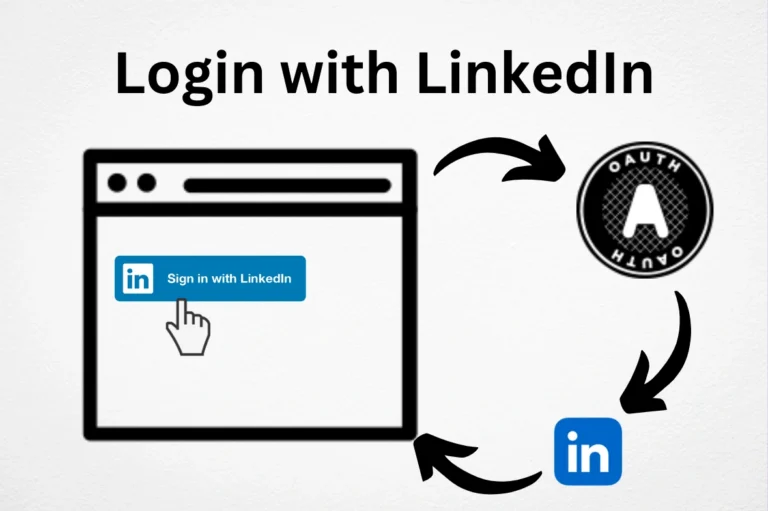
- When users click the LinkedIn button, initiate the OAuth 2.0 flow. Redirect them to LinkedIn’s authorization endpoint.
- After users grant permission, LinkedIn will redirect them back to your website with an authorization code.

4: Exchange Authorization Code for Access Token
- Use the authorization code received from LinkedIn to make a server-to-server request for an access token.
- Store the access token securely on your server for future API requests.
5: Retrieve User Data
- Use the access token to retrieve user data from LinkedIn’s API. You can access profile information, including name, email, and profile picture.
- Map this data to user profiles in your application’s database.
6: User Authentication
- Create or update user profiles in your application’s database based on the LinkedIn data.
- Implement a secure session management system to keep users authenticated in LinkedIn.
As the authentication process relies on the OAuth 2.0 flow, we will delve into this topic in the following section
What is OAuth 2.0?
OAuth 2.0 is the protocol that makes secure logins like “Sign in with LinkedIn” possible.
It allows an application to access a user’s data — without ever seeing their password. Instead, the user grants limited, specific permissions (called scopes) to the app. This is the same protocol used by Google, Facebook, Twitter, and GitHub for their own login systems.
For LinkedIn login specifically, OAuth 2.0 handles two things:
- Authentication – confirming who the user is
- Authorization – controlling exactly what data your app can access (like their name, email, or profile picture)
This is what keeps the process secure on both sides — your app never touches the user’s LinkedIn password, and the user controls exactly what they share. authentication process.
The OAuth 2.0 Flow
OAuth 2.0 has several grant types for different use cases. The most common one is the Authorization Code Flow. Here’s how it works:
Client Registration: The client, or application, is registered with the authorization server. During registration, the client provides a redirect URI. This is where the user is sent after they allow or deny access.
User Interaction: When a user wants to use the client’s service, they click a “Log in with [Service]” button or a similar option. This sends the user’s browser to the authorization server.
Authorization Request: The authorization server asks the user to log in if they are not already signed in. It then shows a consent screen with the permissions, or scopes, requested by the client. The user can approve or deny these permissions.
Authorization Code: If the user approves the request, the authorization server creates an authorization code. It then sends the user’s browser back to the client’s redirect URI with the code.
Token Request: The client receives the authorization code. It then sends a request to the authorization server to exchange the code for an access token.
Access Token: If the code is valid and the user’s consent is still valid, the authorization server sends an access token. This token confirms that the user has allowed the client to access their resources.
Resource Access: The client can use the access token to send authorized requests to the resource server. The resource server checks the token. If the token is valid and has the required scope, it provides the requested resource.
Token Refresh (Optional): Access tokens usually have a limited lifespan. If the client needs continued access, it can use a refresh token, if one is provided, to get a new access token without asking the user to log in again.
Security Best Practices When Implementing LinkedIn Login
OAuth 2.0 is generally secure. But a few implementation details are easy to miss — and missing them can open real security gaps.
Use the State Parameter Correctly
The state parameter protects against cross-site request forgery (CSRF) attacks.
Before redirecting a user to LinkedIn, generate a random state value. When LinkedIn redirects the user back, compare that value against the one you originally sent. If they don’t match, reject the request. This confirms the login attempt actually originated from your site.
Lock Down Your Redirect URI
LinkedIn only allows redirects to domains you’ve registered in advance. This matters more than it might seem.
Without a correctly configured redirect URI, an attacker could register a similar domain and intercept authorization codes meant for your app. That would let them access a user’s LinkedIn account using a phishing page disguised as your login flow.
Never Store Tokens on the Frontend
Access tokens and refresh tokens should live on your backend only — never in browser storage like localStorage or cookies.
If tokens are accessible from the browser, a malicious script or browser extension could steal them directly. Keeping tokens server-side removes that risk entirely.
Conclusion:
Adding LinkedIn login to your platform does more than simplify sign-up. It builds trust, reduces friction, and gives users a login method they already know and use.
Getting there safely means understanding OAuth 2.0, following LinkedIn’s implementation steps carefully, and closing the security gaps that are easy to overlook — the state parameter, redirect URI configuration, and secure token storage.
Done right, LinkedIn login becomes a small addition with a real payoff: faster onboarding, stronger user trust, and a more secure application overall.