

- 1 Google Cloud Run is another serverless product in Google Cloud that manages the infrastructure, scale, and the load balancing for the applications while offering developers just the environment to build and deploy applications.
- 2 Based on the containerization technology, Cloud Run enables projects to deploy the application in multiple environments utilizing the same setup; Additionally, its ‘‘consumer pays’’ cost structure allows work on projects no matter their size.
- 3 It can be used for web apps, APIs, batch processing, backgroud jobs etc with fast and easy deployment with auto scaling and optimal resource allocation.
In the ever-evolving landscape of cloud computing, serverless technologies have become a game-changer for developers and businesses seeking agility, scalability, and cost-effectiveness. Google Cloud Run is a prime example of serverless computing done right. In this post, we’ll explore Cloud Run’s features, benefits, and use cases, and look at how you can use it to speed up application deployment.
What is Google Cloud Run?
Google Cloud Run is a fully managed compute platform that enables developers to deploy containerized applications for software application development. Whether they are microservices, web applications, APIs, or background workers, developers can use Cloud Run without worrying about the underlying infrastructure. Cloud Run abstracts away the complexities of server management, allowing developers to focus solely on building and shipping code for their software application development. Here are some key highlights of Cloud Run:
1. Serverless Architecture
With Cloud Run, there’s no need to provision or manage servers. It automatically handles scaling, load balancing, and resource allocation based on incoming requests.
2. Containerization
Cloud Run uses container technology, so you package your application and its dependencies into Docker containers. This ensures consistent deployment across different environments.
3. Cost-Efficiency
You pay only for the compute resources your application actually uses. Cloud Run’s pay-as-you-go pricing makes it cost-effective for projects of any size.
4. Fast Deployment
Deploying on Cloud Run is fast and simple, letting you iterate and release new features quickly without downtime.
How Cloud Run Differs from Traditional Serverless Functions
Cloud Run is often grouped with AWS Lambda or Google Cloud Functions under “serverless.” But there’s an important distinction: traditional serverless functions run isolated snippets of code, while Cloud Run runs entire applications inside containers.
What’s the Benefit of This Approach?
Any programming language or framework can be containerized and deployed to Cloud Run. That means if your team has an existing application built on a particular framework, you don’t have to rewrite it to deploy to Google’s serverless environment.
Moving Beyond the Serverless Stack
Since Cloud Run is a form of container orchestration, it shares similarities with other container-based platforms. The same container image can be deployed to any system that supports Docker.
This is a key difference from traditional serverless functions, where you’re often locked into one framework or language. With Cloud Run, your team writes standard containers that could just as easily run on AWS, Azure, or any other Docker-compatible system.
This also makes development and testing more straightforward. Your developers can test the exact container that will be deployed to Cloud Run, instead of working with an approximation of the production environment.
Scaling to Zero: Savings and Considerations
The most interesting difference between Cloud Run and traditional serverless functions is how scaling down works.
AWS Lambda and Google Cloud Functions keep “idle” servers around that still consume resources. Cloud Run, by contrast, can scale all the way down to zero. If your app gets no traffic, it uses no resources.
This can dramatically cut costs, especially for infrequently used applications or APIs. Internal tools and staging environments are great candidates, since you only pay for compute time when someone actually visits.
There’s a tradeoff, though: an app using this “scale to zero” approach will have a slight delay on the first request, while a new instance boots up.
Use Cases for Google Cloud Run
Cloud Run is versatile and fits a wide range of use cases.
1. Web Applications
Deploy web applications and microservices that automatically scale to handle traffic spikes, keeping the user experience smooth.
2. APIs
Build RESTful APIs as containerized applications that are easy to manage and scale with gcloud run.
3. Batch Processing
Run batch jobs, like data processing and analysis tasks, without dedicated infrastructure.
4. Background Processing
Run asynchronous tasks and background jobs triggered by events or messages, keeping your application responsive.
Cloud Run vs. Google Kubernetes Engine: When to Choose Which
Google Cloud Platform offers several ways to run containerized applications, and Cloud Run is just one of them. It helps to understand when Kubernetes Engine (GKE) is the better fit.
Cloud Run works best for stateless applications that are triggered explicitly and don’t need heavy interaction with other services. These are also easier to scale, since they don’t need to manage complex relationships or rely on events.
GKE is built for more complex scenarios — multi-container pods, intricate networking, and advanced storage needs. Most applications don’t need that extra control and flexibility, which is why smaller organizations without a dedicated IT team often choose Cloud Run instead.
Security Considerations for Cloud Run
Since Google handles the infrastructure, your main security concerns with Cloud Run are the application and container themselves. Keep your base images updated — an app built on an outdated, insecure image stays insecure no matter what else you do.
The same caution applies to environment variables. Storing secrets like API keys directly in them is a security risk, so avoid it. Instead, use Google Secret Manager, which Cloud Run supports natively.
IAM controls access to Cloud Run just like any other Google Cloud service. Incorrect permissions are usually a result of carelessness rather than a deliberate choice. Review your roles and bindings regularly, and remove unused entries instead of just adding new permissions on top.
Custom Domains and Traffic Management
By default, every Cloud Run service gets its own dynamically assigned URL. For most production apps, though, you’ll want a custom domain.
Cloud Run supports custom domains and automatically provisions the SSL certificates you need, so you don’t have to manage certificates yourself.
Traffic management is another important piece. Cloud Run supports blue-green deployments and can split traffic between different revisions of an app, letting you canary-release new versions with zero downtime.
Continuous Deployment in Cloud Run
You can manually deploy changes to Cloud Run with each commit, but in most cases a CI/CD pipeline is a better approach.
Cloud Build can automatically build and deploy your app every time you push a commit to a chosen repository. That removes deployment from your day-to-day workflow.
A pipeline like this also acts as an audit trail. Every commit requires a message and a reference to the branch it merged into, so you always know what code went to production and when.
How to Deploy on GCloud Run
Let’s walk through the steps to deploy a containerized application on Google Cloud Run:
Step 1: Containerize Your Application
Begin by creating a Docker container for your application. Write a Dockerfile that specifies the base image, dependencies, and how to run your app.
Step 2: Push to a Container Registry
Store your Docker image in a container registry like Google Container Registry (GCR) for easy access and deployment. You can use the docker push command to upload your image.
Step 3: Deploy to Cloud Run
Deploy your containerized application to Cloud Run using the gcloud run deploy command. Specify the container image, service name, and configure settings like memory allocation and environment variables.
Step 4: Access Your Application
Once your app is deployed, Cloud Run provides a URL to access it. You can also set up custom domains and manage traffic routing based on your requirements
Now we’ll walk through the process of deploying a Node.js application on gcloud run, from containerizing your app to accessing it on the web
Prerequisites:
Before we get started, make sure you have the following in place:
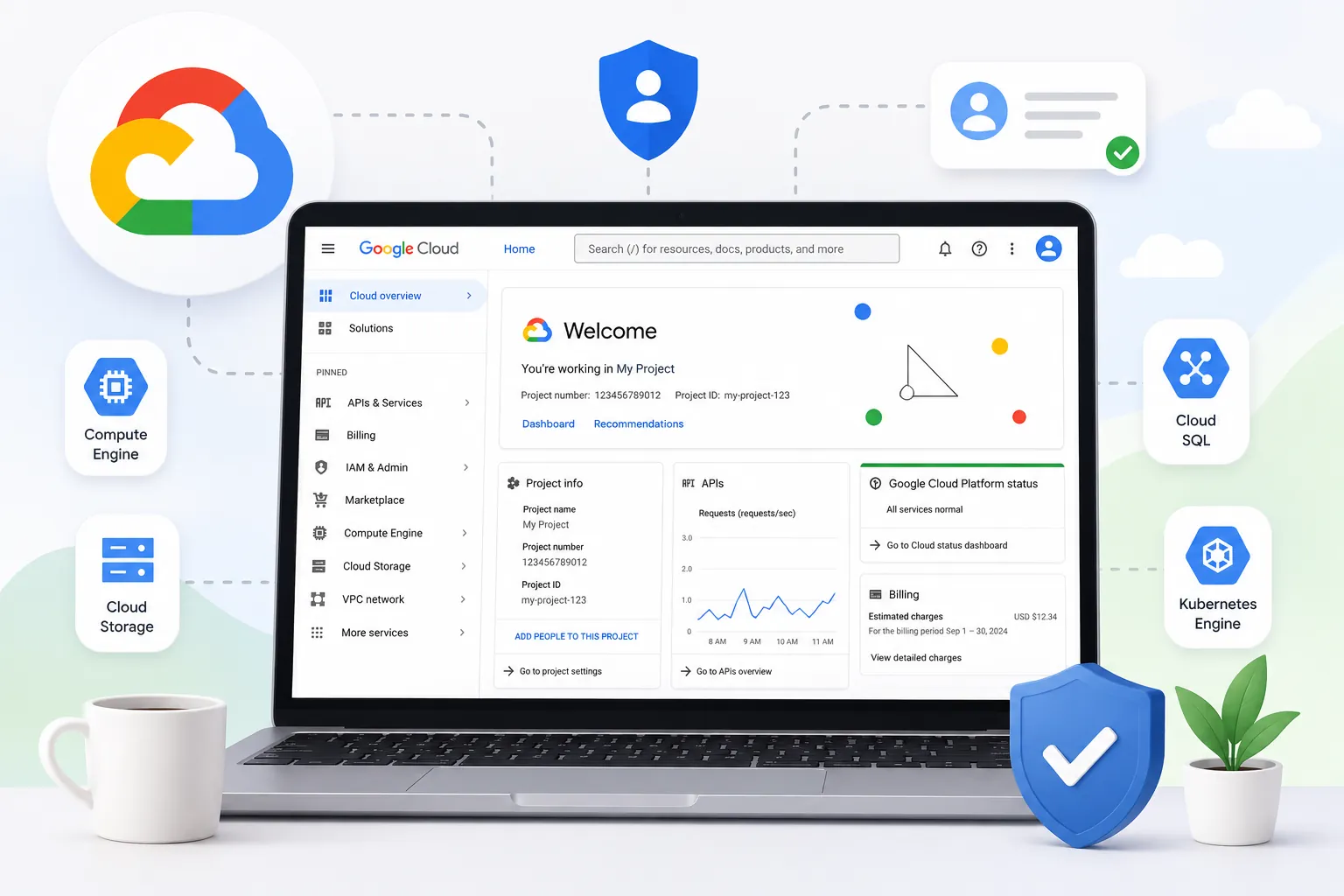
A Google Cloud Platform (GCP) account.
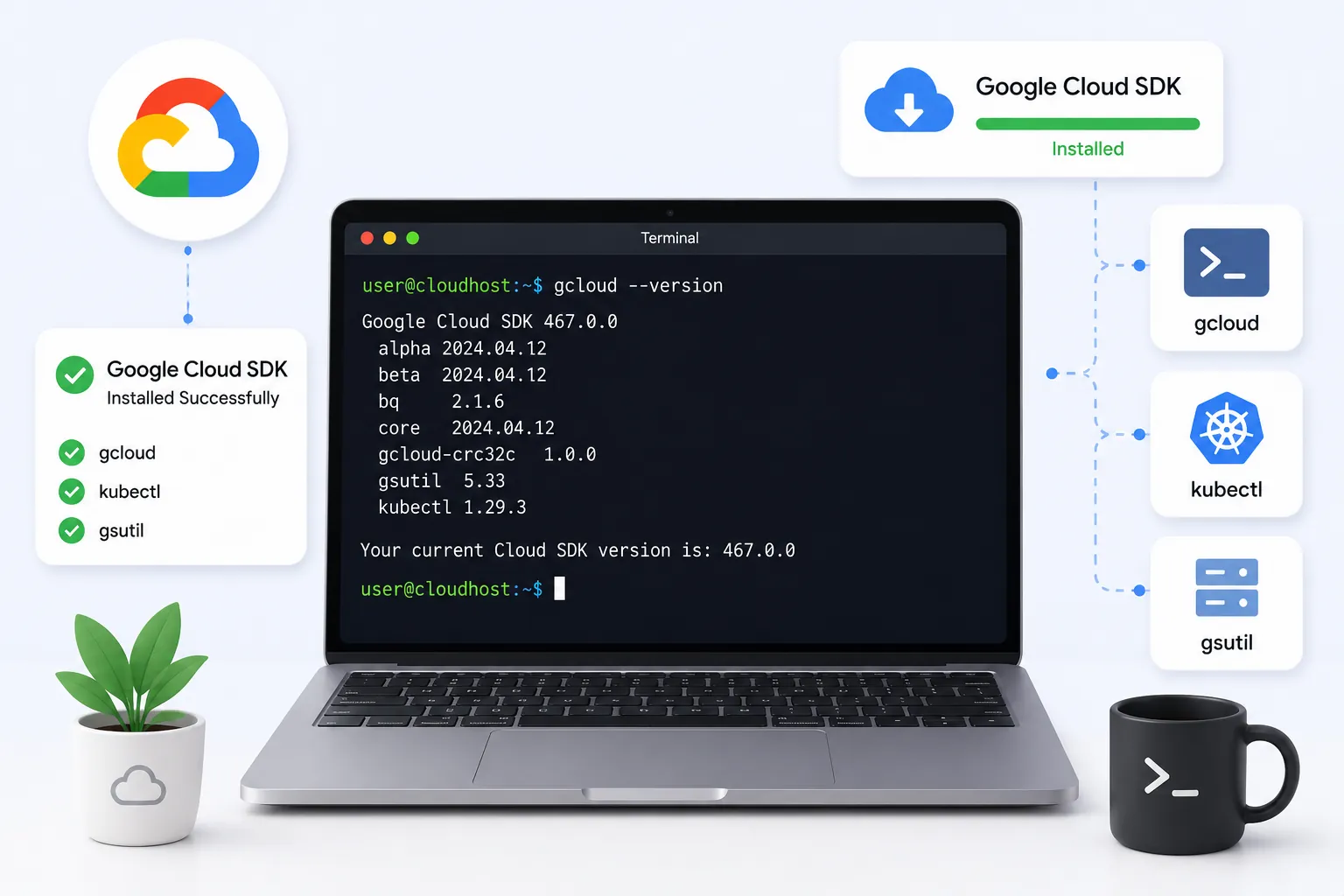
The Google Cloud SDK installed on your local machine.
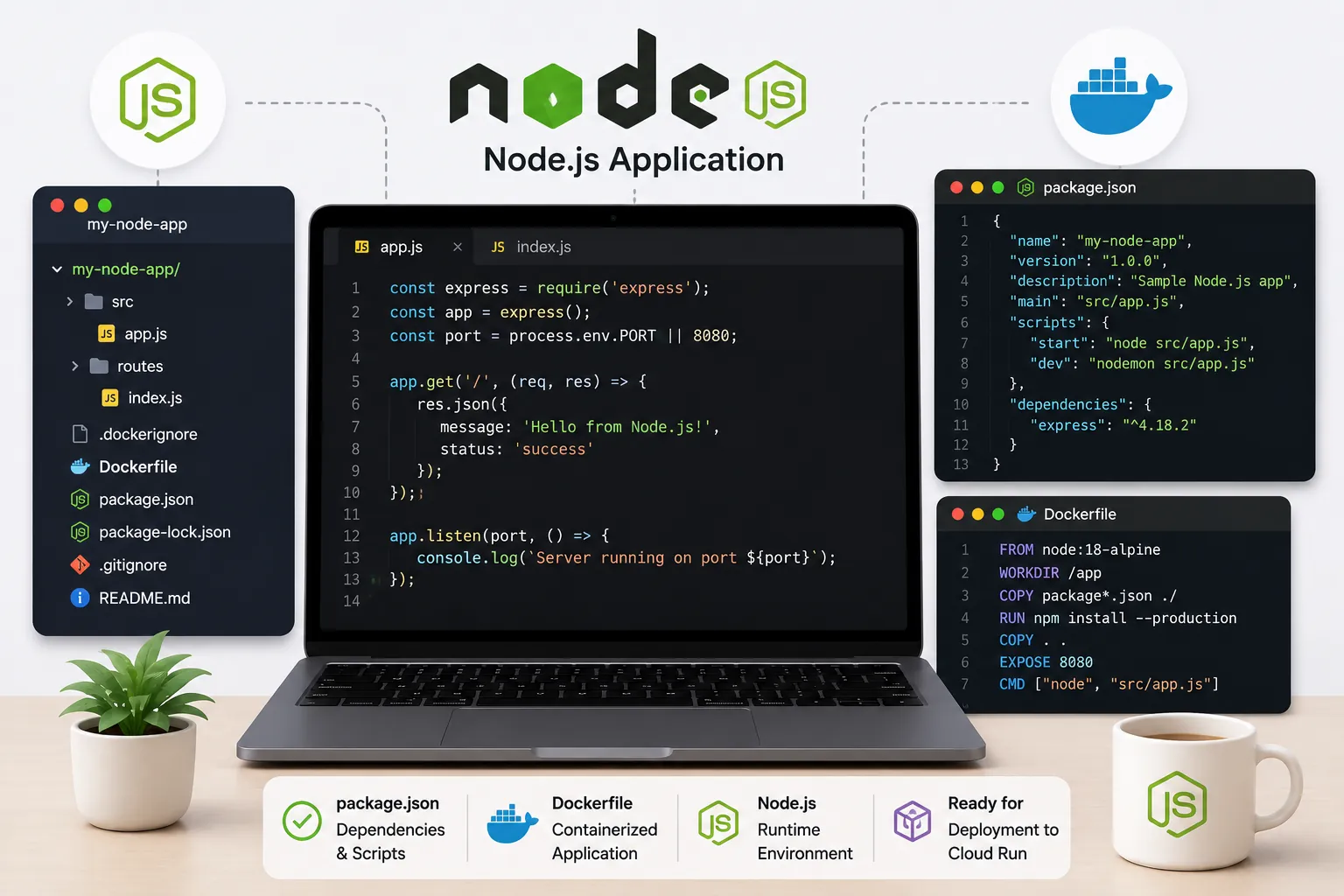
A Node.js application that you want to deploy, complete with a package.json and Dockerfile set up.
Step1 :Containerize Your Node.js Application
Containerization allows you to package your application and its dependencies into a consistent and portable environment. Here’s how to containerize your Node.js app:
Create a Dockerfile in the root directory of your Node.js application. Here’s a simple example:
Dockerfile

Build the Docker image for your application by running the following command in the same directory as your Dockerfile:
bash
After completion similar status will be shown in your terminal –
Test your Docker image locally using Docker to ensure it runs correctly:
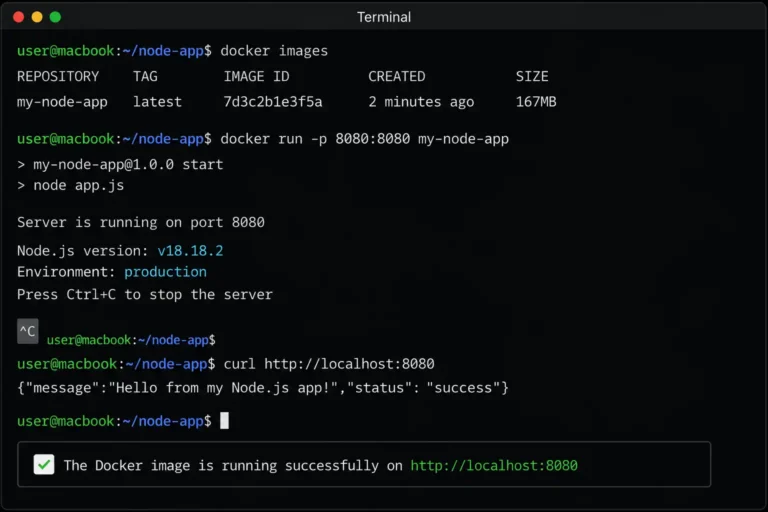
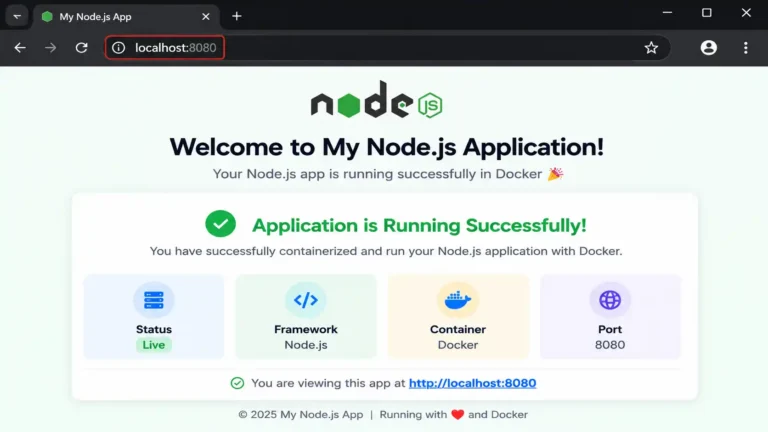
You should be able to access your Node.js application at http://localhost:8080 in your web browser.
Step 2: Push the Docker Image to Google Container Registry (GCR)
Now that your Docker image is ready, it’s time to push it to Google Container Registry (GCR) for deployment:
Authenticate your Google Cloud SDK with your GCP account using:
gcloud auth loginSet the Google Cloud project where you want to store your Docker image:
gcloud config set project your-project-idConfigure Docker to use GCR as the container registry:
gcloud auth configure-dockerTag your Docker image with the GCR repository URL:
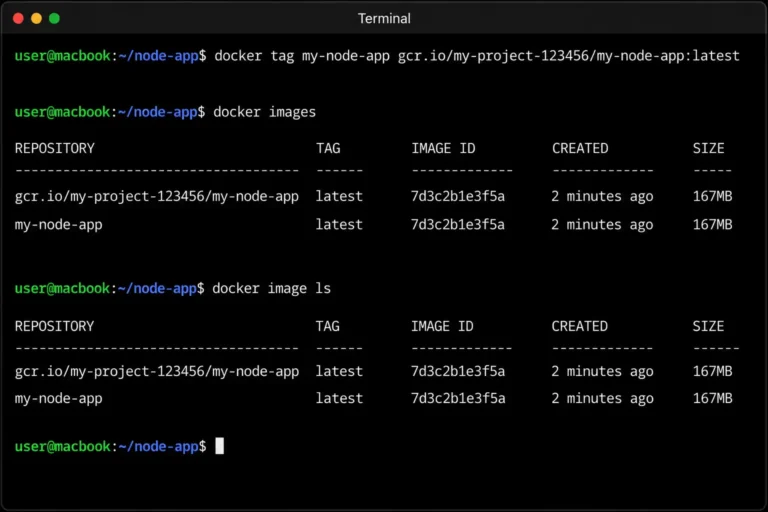
Push the Docker image to GCR:
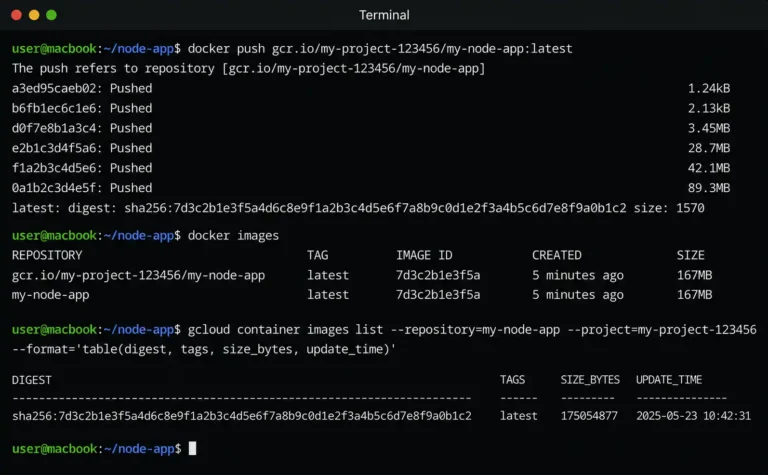
After completion :
On the GCP console you can see our “app” on GCP console, Container Registry → Images.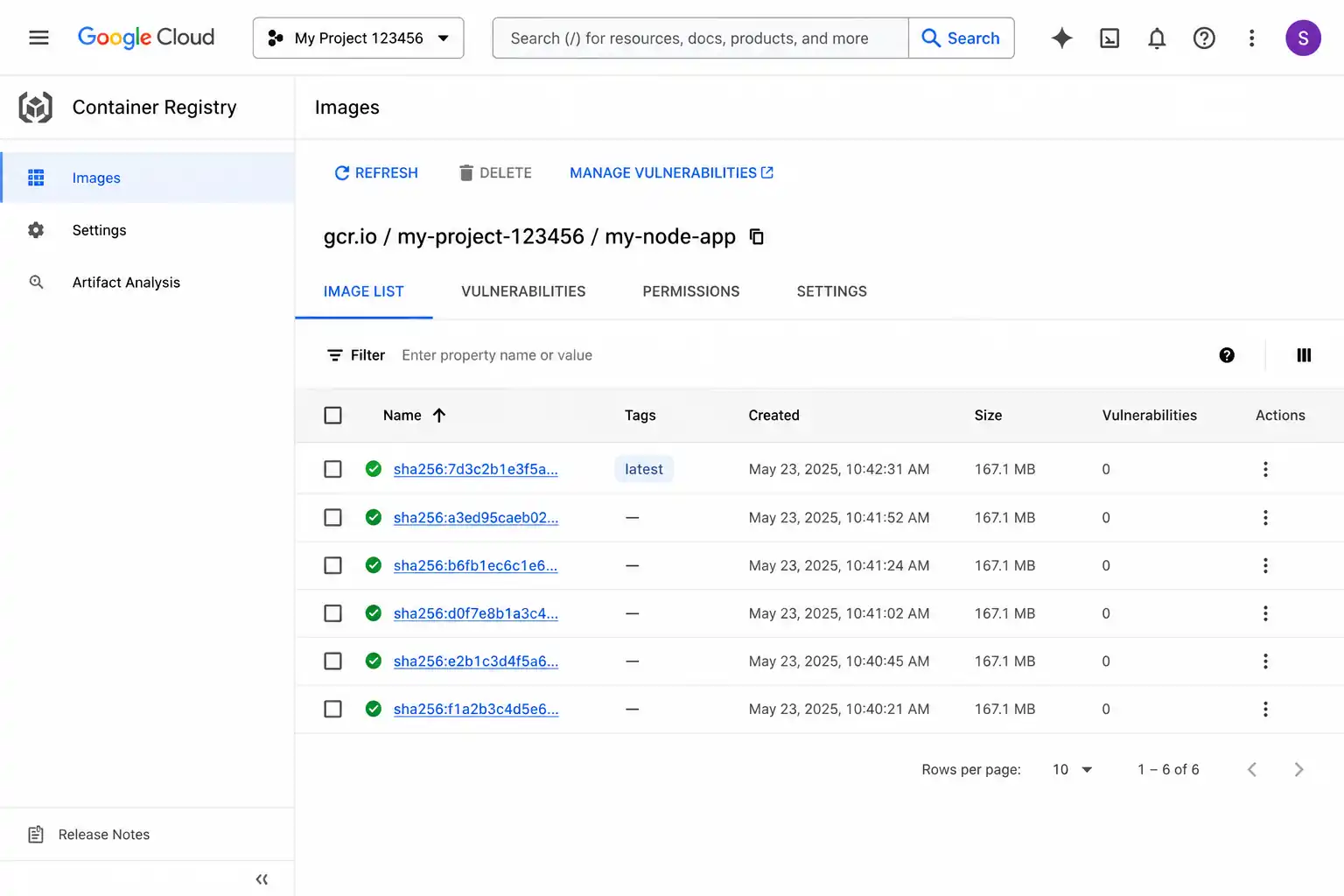
Step 3: Deploy Your Node.js App on Google Cloud Run
The final step is to deploy your containerized Node.js application on Google Cloud Run:
Deploy your application with the following command, replacing placeholders with your own values:
gcloud run deploy your-service-name \
    --image gcr.io/your-project-id/your-image-name \
    --platform managed \
    --region us-central1
your-service-name: Choose a unique name for your Cloud Run service.
--image: Specify the URL of the Docker image in GCR.
--platform: Set to "managed" to use Cloud Run in the managed environment.
--region: Choose the region where you want to deploy your service.
After successful deployment, you’ll receive a URL where your Node.js app is accessible. You can access it via a web browser or any HTTP client.
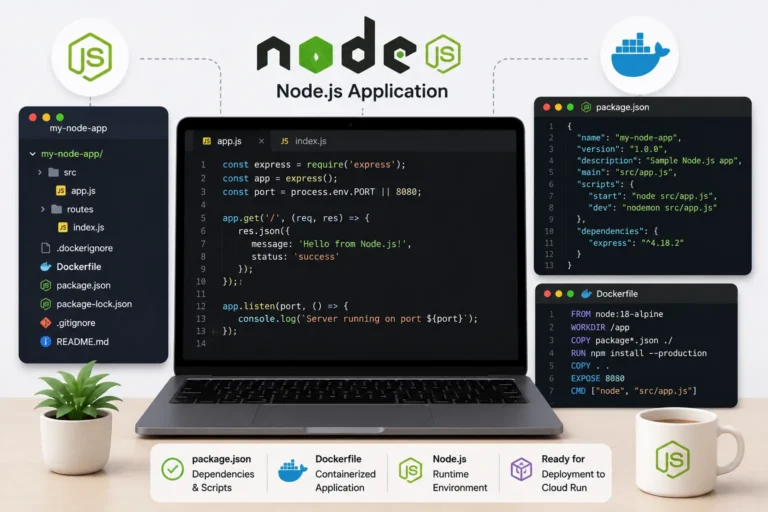
Congratulations! You’ve successfully deployed your Node.js application on Google Cloud Run. Cloud Run automatically handles scaling based on incoming traffic and charges only for the compute resources you use, making it an ideal choice for hosting containerized applications in a serverless environment.
Monitoring and Logging on Cloud Run
After deploying the application to Cloud Run, it is important to watch its performance in production. With Cloud Run, monitoring is integrated into Google’s operations platform (formerly Stackdriver).
The logs for a Cloud Run service are automatically sent there, without any additional configuration. Through the console, one may view the logs in real-time and get an idea of what the application is doing. Note that Stackdriver will have both application logs (if any are configured) and request-specific logs, giving a decent overview with little effort.
The request count, instance count, and latency are also automatically tracked and may be viewed in the console as well, useful for determining whether the application is serving requests properly or needs some adjustment to its scaling settings. For example, if the instance count is too low for the arrival rate, the application will suffer from cold starts.
Common Mistakes When First Deploying to Cloud Run
There are several common mistakes that every developer makes when deploying their application for the first time.
Failing to expose the correct port is rather common. The PORT environment variable is used to bind the application inside the container, and if the application is listening to a different port, it will not receive any traffic, despite the console saying the deployment was successful.
Not allocating enough memory or CPU may also be a problem. While the default values are enough for most applications, some memory-heavy applications may be unexpectedly killed by Cloud Run if they allocate too much memory per container. It is especially hard to notice for less memory-heavy applications that do not use much of the available RAM.
The last common mistake is not configuring minimum instances for latency-sensitive applications. Cloud Run scales the application down whenever it is not needed, which results in cold starts for applications that need to be responding immediately. If the application is latency-sensitive (or has a strict SLA), it is better to sacrifice some budget and always keep instances warm.
Conclusion:
Google Cloud Run simplifies the process of deploying containerized applications, enabling developers to focus on building great software rather than managing infrastructure. By following the steps outlined in this guide, you can deploy your Node.js application on Cloud Run with ease. Embrace the power of serverless computing and accelerate your development workflow on Google Cloud Platform with the support of dedicated offshore developers with offshore development.