

- 1 Child themes retain all modifications that are made to a parent theme, thus safeguarding, for instance, the specific design and interfaces applied to a specific website, should the parent theme be updated without these alterations.
- 2 Child themes can be deployed in order to make the process of problem solving or extension simpler and cleaner as any problem is localized to the child theme and new features are incorporated into a sub-theme to keep the look and feel uninterrupted.
- 3 When developing in WordPress, it is recommended to use Staging, creating child themes to protect one’s custom work, updating WordPress the right way, and getting real life practice for developers.
- 4 Avoid Common Setup Mistakes: A child theme only works when the Template field in style.css exactly matches the parent theme’s directory name, and when the parent stylesheet is properly enqueued – these issues are among the most common causes for a child theme not loading.
- 5 Child Themes Will Continue to be Necessary Even With the Introduction of Block Themes: Despite the WordPress site editor promising greater flexibility by using block themes, child themes are still safer for developers who need to make customizations that the new theme.json file and the Site Editor cannot handle — such as PHP tweaks or template overrides.
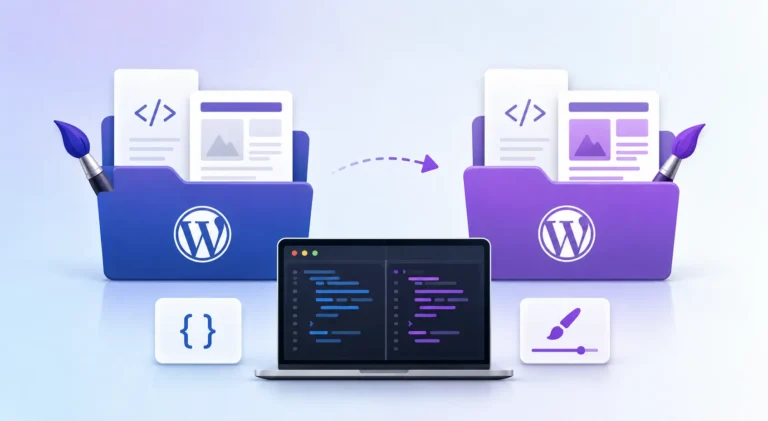
WordPress stands out as a versatile and widely embraced content management system (CMS), catering to the needs of countless websites globally. Its appeal lies in the robust feature set that allows users to shape the look and functionality of their websites through themes. Yet, the convenience of directly tweaking a parent theme’s files can turn into a headache when updates roll in.In this guide, we will gracefully guide you through the steps of crafting a child theme in WordPress. By doing so, you can make your customization without the peril of disrupting the harmony with future theme updates.
Here, we’ll unravel the intricacies, making sure that your customization endeavors not only enhance your website’s allure but also withstand the test of time and updates. Let’s embark on this journey to ensure your website’s aesthetics and functionalities remain intact, all while embracing the flexibility that child themes bring to the WordPress experience. Join us as we explore the art of crafting a child theme, where innovation meets stability in the dynamic world of WordPress.

Why Child Themes Matter:
Child themes serve as a essential in the realm of WordPress customization, offering a pivotal solution to a common dilemma faced by website developers and designers.
Importance of child themes and WordPress toolkit:
- Preservation of Customization:
- When you directly modify files in a parent theme, your changes are at risk of being overwritten during theme updates. Child themes act as a protective shield, allowing you to safeguard your meticulous customization and making sure they endure future updates unscathed.
- Sustainable Updates:
- WordPress frequently releases updates to enhance security, fix bugs, and introduce new features. Without a child theme, updating your parent theme can be a precarious endeavor, potentially undoing your hard work. Child themes allow you to update the parent theme without sacrificing your personalized touches.
- Efficient Troubleshooting:
- Child themes make simple the troubleshooting process. When issues arise, it’s easier to pinpoint the problem within the child theme, as opposed to sifting through the multitude of changes made directly to the parent theme. This efficiency accelerates the resolution of any unforeseen challenges.
- Scalability and Consistency:
- Child themes promote scalability and consistency across your website. As your site evolves, you can seamlessly introduce new features or tweak existing ones within the child theme framework, making sure a cohesive and uniform user experience.
- Best Practices in Development:
- Following best practices in WordPress development involves utilizing child themes. It aligns with the modular and extensible nature of WordPress, supporting a structured approach that not only eases your current workflow but also sets the stage for future enhancements.
- Learning and Collaboration:
- For those entering the realm of WordPress development, understanding and implementing child themes is an invaluable learning experience. It encourages good coding practices and opens the door to collaborative efforts, as developers worldwide adhere to a common and efficient methodology.
What Goes Wrong Without a Child Theme
It’s good to make this concrete. If you make changes to the parent theme — edit a template file, change some code in functions.php, or tweak some colors in style.css — you have to make those changes in the parent theme’s directory. To WordPress, any changes you make in the parent theme directory are suspect; when the time comes to update the parent theme, there’s no way for WordPress to know the difference between your custom code and the original code that came with the theme, so any and all changes you’ve made in the parent theme directory could be overwritten when WordPress updates the theme.
This can happen if you click “Update Theme” in the admin, or if you have a host that automatically updates themes when a new version is released; either way, when you update the parent theme, any changes you’ve made directly to files in the parent theme’s directory will be gone the moment the update finishes, unless you have a backup. A child theme is a solution to this problem, because a child theme has its own directory, separate from the parent theme’s directory. That way, when you update the parent theme, the custom code in your child theme directory is untouched. All the files in the child theme directory are ones you’ve specifically told WordPress to use, so when WordPress updates the parent theme, it knows not to touch them.
Child Themes and Performance
A reasonable question to ask in the context of themes is, does adding a child theme add significant overhead due to having to load the parent theme, and does that affect performance? The short answer is no, and the slightly less short answer is that you should understand what a child theme physically is in order to understand why
A child theme doesn’t have a copy of parent theme functionality running alongside its own, and doesn’t have the overhead of some sort of intermediary layer between themes. The way that a lot of people are actually using them is that WordPress’ template hierarchy just loads files from the child theme directory first, and falls back to the parent if the child theme doesn’t have a file that it’s asked for. That’s simply a matter of WordPress having to include files from two places if the child theme has to override a particular bit of code, nothing more. There’s no extra step involved when using a child theme that wouldn’t also be present without one, aside from the initial overhead of including whatever stylesheets you actually want to include.
Actually having a performance impact on things would be enqueueing the parent theme’s stylesheet incorrectly, and a child theme doing this correctly shouldn’t actually impact performance any differently than if you didn’t have a child theme at all. In fact, it’s more likely to have issues the other way around; if the parent theme styles aren’t being loaded by the child theme correctly, that can have performance implications as well, which is likely to happen if you’re trying to do something like importing the parent stylesheet into your child one’s CSS using
Child Themes vs. the WordPress Site Editor: What’s Still Relevant
Does the new WordPress 5.9+ make the use of child themes unnecessary?
It depends on the customization use-case. The block themes and Site Editor make it much easier to do visual-level tweaking of design elements, which is what a lot of people used child themes for before, but there are still valid reasons to use a child theme for more “code-heavy” customizations, and for themes that aren’t built with blocks (still the majority as of WordPress 5.9).
BUT if you need to add or change PHP or need to add some unique elements not exposed by the block editor that require their own template overrides or special PHP functionality THEN you will need a child theme.
Also keep in mind that the block based themes are still a relatively new addition to WordPress, and the majority of themes that are actually being used currently are still non-block ones.As such, child themes are still a necessary tool for customization of any kind for those themes, and are also useful for block themes when one needs to add more complex or customized elements. Most WordPress devs I know tend to use the Site Editor alongside a child theme for day-to-day visual customization, but use the child theme for custom code additions or modifications.
Creating Your Child Theme: Step by Step
Follow these steps to create your own child theme in WordPress:
1. Choose a Parent Theme:
A parent theme is a complete WordPress theme. Meaning, it includes the WordPress template files and assets required for the theme to work. Only index.php and style.css, the main template and style files, are necessary for creating WordPress templates.
Select the parent theme you want to build your child theme. You can find thousands of free and premium themes in the WordPress Theme Directory or from third party sources.
2. Create a New Directory:
Inside your WordPress installation, navigate to the wp-content/themes/ directory. Create a new directory for your child theme. It’s recommended to name it something like parent-theme-name-child to keep it organized.
3.Create a Stylesheet (style.css):
Inside your child theme directory, create a style.css file. This file serves as the starting point for your child theme. Add the following code at the top of the style.css file:
/*
Theme Name:   My Child Theme
Description:  Child theme for Parent Theme Name
Template: 	parent-theme-directory-name
Version:  	1.0
*/
/* Add your custom CSS here */
Make sure to replace “My Child Theme,” “Parent Theme Name,” and “parent-theme-directory-name” with your theme’s information.
4. Enqueue the Parent Theme Stylesheet:
To inherit styles from the parent theme, open your child theme’s functions.php file (create one if it doesn’t exist) and add the following code:
function enqueue_parent_styles() {
    wp_enqueue_style('parent-style', get_template_directory_uri() . '/style.css');
}

add_action('wp_enqueue_scripts', 'enqueue_parent_styles');
This code enqueues the parent theme’s stylesheet.
5. Activate Your Child Theme:
Log in to your WordPress dashboard, go to “Appearance” > “Themes,” and activate your child theme. Your website will now use the child theme while inheriting the functionality and styles of the parent theme.
Customize Your Child Theme:
You can now start customizing your child theme. You can add custom CSS to the style.css file or override specific template files by copying them from the parent theme directory to your child theme directory.
Common Mistakes to Avoid When Creating a Child Theme
Many of the problems with child themes come from a few common errors. One of these mistakes is an incorrect name in the Template field.
It should be same to the directory name of your parent theme in wp-content/themes directory. Another important thing is that capitalization should be accurate, since otherwise, the parent theme will not be displayed properly and your child theme will either look bad or not appear at all in the Appearance > Themes section of the dashboard.
Another common mistake is not enqueueing the parent theme stylesheet in the child theme. Failing to do this one step will lead to situations in which the styles from the child theme will be overriding the parent’s one resulting in a site being looking completely different to the one desired after the switch.
Sometimes developers tend to copy all the files from the parent theme into the child theme directory instead of only the necessary ones which they are going to change. In most cases this approach does not make any sense as it will result in a child theme which contains all the files which will be overwritten by the parent theme update. The only reason for this is to have the ability to edit a few files and to avoid doing a lot of extra work on every parent theme update. The proper use of the child theme means that only files which are actually edited need to be present in the directory in order to provide smooth updates of the parent theme in the future.
The last common mistake is not testing your changes using a staging environment. It is really easy to mess something up while editing files resulting in an unexpected behavior on the website. Sometimes it seems that the child theme is buggy when really the bug is in the PHP or CSS code of the parent theme that the child theme is clashing with. Using a staging environment allows you to test your child theme changes in a different environment without affecting the production server.. This will save you hours and hours of frustrating work. Having a separate server for testing allows you to enable the child theme there to avoid breaking the production environment. This will save hours and hours of hard and frustrating work.
Managing Your Child Theme with Version Control
A child theme which is already live should be treated in much the same way as any other code which is to be maintained for an extended period of time – especially on client sites or any projects which have multiple developers working on theme files.
Keeping the folder of the child theme, separate from the core WordPress and plugin files, in version control allows for the tracking of every change to the style.css, functions.php, or any other overwritten template files. It can be very useful, if a change made on the child theme has unintended consequences elsewhere. With a version controlled repository you can easily see what edits could be responsible, and revert the changes without having to manually see how the faulty version of the file differs to a previous version of said file.
On projects using a staging and production environment, the recommended practice would be to make any edits on the staging branch, commit them to a repository, and deploying them to production. This way, the exact changes which are pushed to the live site are known at a glance. This is especially important for any enterprise-level custom software development projects, which incorporate WordPress as a CMS at a relatively low level within their development stack.
It should also be noted that it might be a good idea to make sure that your .gitignore file is set up in a way that makes it so WordPress core files and media uploads are not tracked by the repository. This will ensure that the repository only has the files necessary to maintain your child theme, as opposed to having all of the files WordPress has. This will make deployments faster, and easier to work with for other developers.
Child Theme File Reference
For developers new to the child theme structure, it helps to see at a glance which files are actually required versus optional, and what each one is responsible for:
| File | Required? | Purpose |
style.css | Yes | Defines the theme header (name, template, version) and holds custom CSS |
functions.php | Effectively yes | Enqueues the parent stylesheet; holds any custom PHP functionality |
screenshot.png | No | Thumbnail shown in Appearance > Themes; purely cosmetic |
Template files (e.g. header.php) | No, only if overriding | Only needed for files being deliberately overridden from the parent |
template-parts/ overrides | No, only if overriding | Same principle — copy only the specific part being changed |
Child Theme vs. Direct Parent Theme Edits: Side by Side
| Consideration | Editing Parent Theme Directly | Using a Child Theme |
| Survives parent updates | No | Yes |
| Setup effort | None | Minimal — a few files |
| Troubleshooting clarity | Harder — changes mixed with core theme code | Easier — changes isolated in one place |
| Recommended for production sites | No | Yes |
| Suitable for quick, throwaway testing | Sometimes, in a local/dev environment only | Also fine, but usually unnecessary overhead for pure testing |
Conclusion:
As you embark on the journey of WordPress customization through child themes, trust in Innostax, your dedicated partner in WordPress design and development. Creating a child theme in WordPress is a crucial step in maintaining a secure and organized website. It allows you to customize your site while preserving the ability to update the parent theme. By following the steps outlined in this guide, you can take full advantage of the flexibility and power of WordPress themes without worrying about future updates breaking your customization. Elevate your online presence with the perfect blend of innovation and reliability, crafted by the experienced professionals at Innostax. Happy theming!